

Step-by-Step Build Guide
This guide walks you through assembling a complete PolyKybd Split72 from parts. Have all required parts ready before you start.
A build video is also available: Watch on YouTube
-
Choose and fit your optional components
PolyKybd has four fully optional components. None is required for a working keyboard, but a couple have to go in at specific points during assembly, so decide which (if any) you want on each half before you start:
- Light + proximity sensor (Pimoroni LTR-559) — highly recommended. Auto-brightness and wake-on-approach. See Light and proximity sensor.
- Rotary encoder (Alps EC11 or EVQWGD001). See Rotary encoder.
- Trackball (Pimoroni). See Trackball.
- Cirque trackpad — the 35mm is the recommended one; a 23mm also fits. See Cirque trackpad.
Fit the under-plate parts now, before the aluminum plate goes on — they don’t fit through it later:
- Light + proximity sensor — solder it now. This is the one part that must go in first: it cannot be added after the plate without an almost complete disassembly.
- Trackball — solder it to the PCB now, flush to the front.
- Cirque trackpad — do its preparation now (remove R1, attach the FPC, seat it in its holder); it is mounted onto the plate later.
Fitting a rotary encoder? Check its clearance against the plate when you fit the plate, and solder it later, once all the switches are seated. Full per-component instructions are in Optional components at the end of this guide.
-
Install the status display
Insert the 0.96” status display into its holder (bend the holder back and let it snap around the display). Connect the FPC cable to the socket on the PCB and lock it by lowering the brown flap on the FPC socket.
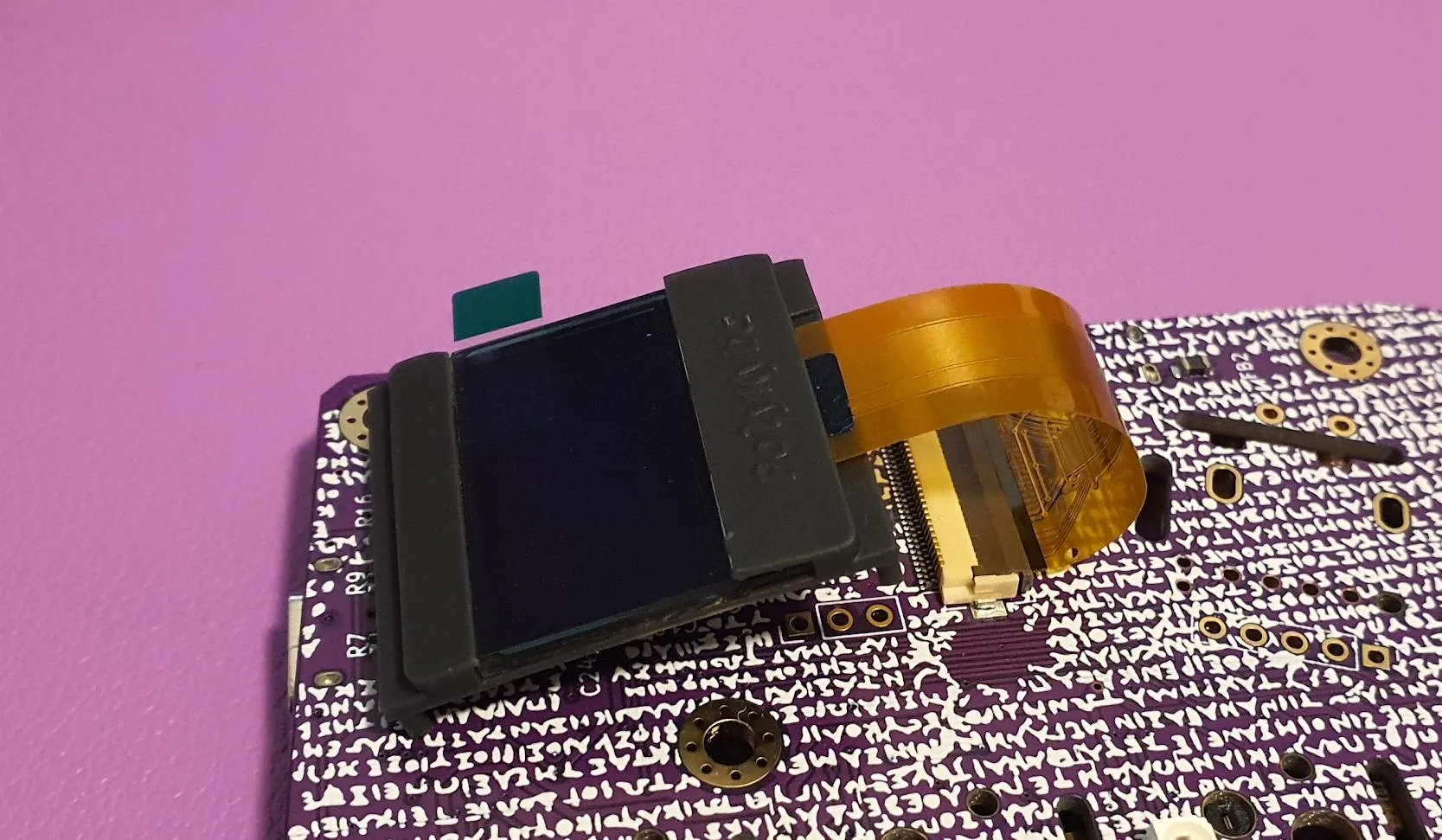
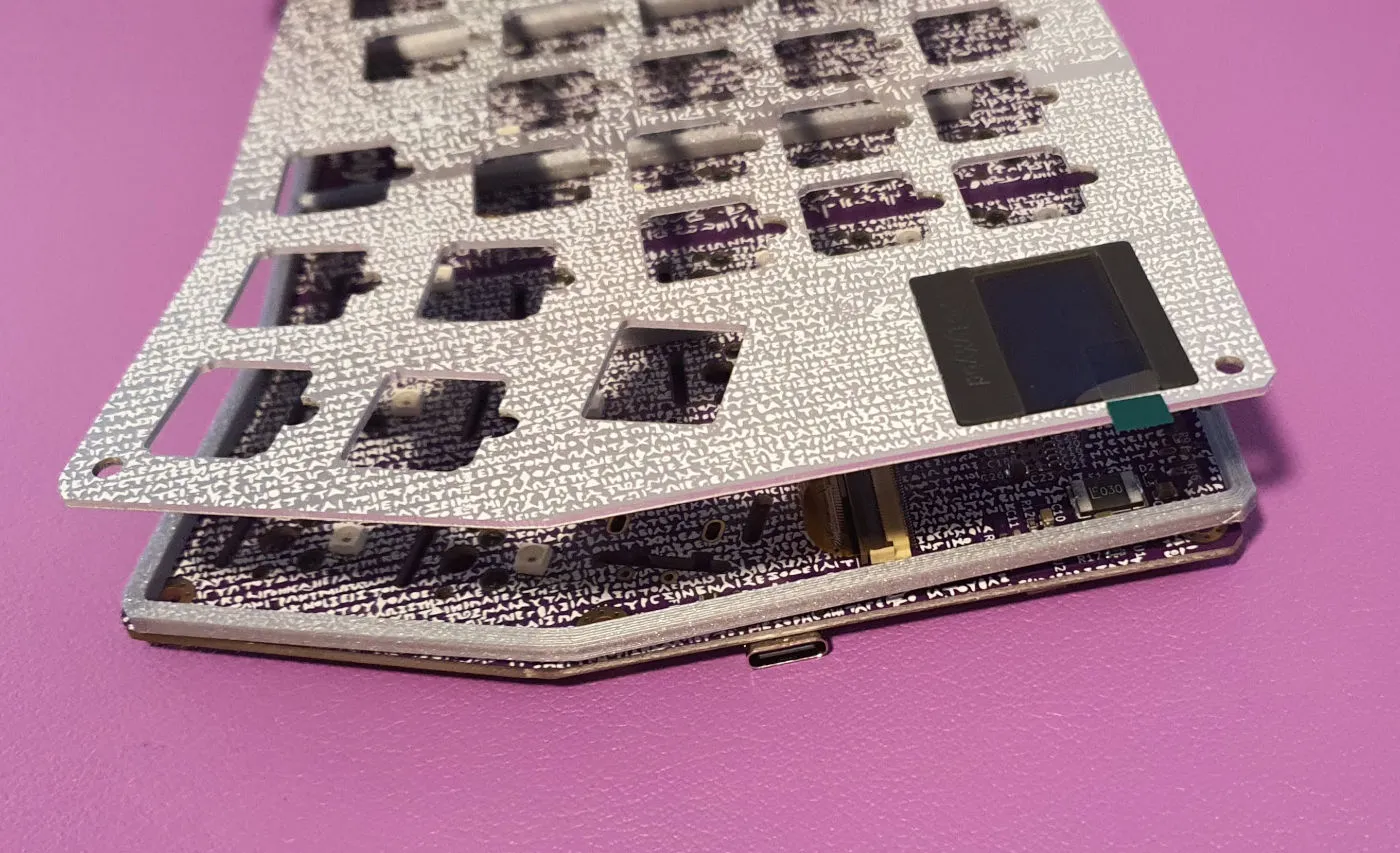
If you are not installing a status display, fit the dummy cover in its place.
-
Place the spacer and fit the plate
Put the spacer on top of the PCB. Slide the plate down over the assembly, guiding the status display holder (or dummy) through the plate cutout from the back side. The plate rests on the spacer. Temporarily insert two screws at diagonal corners to align the plate and PCB.
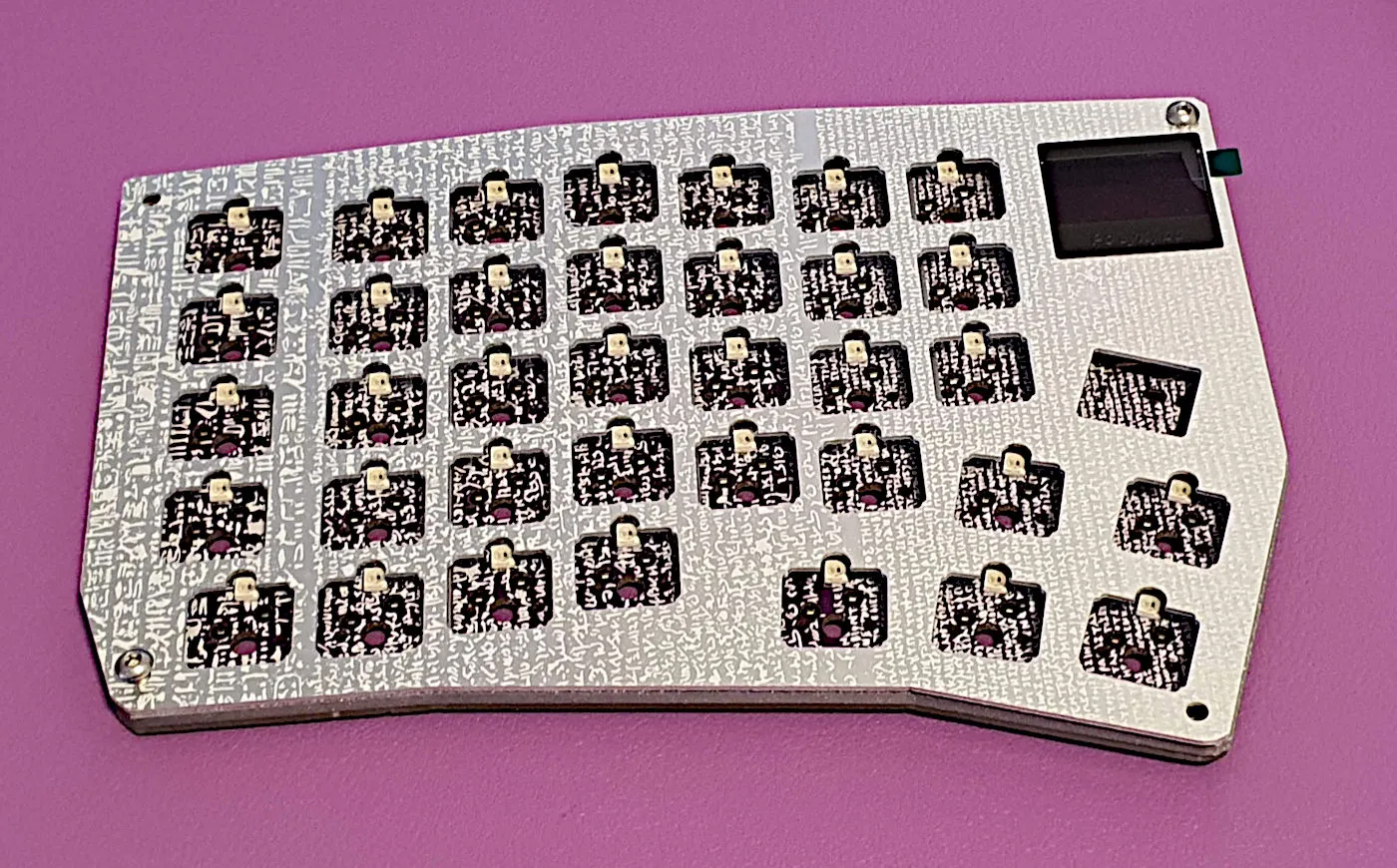
-
Mount the Cirque trackpad (if using)
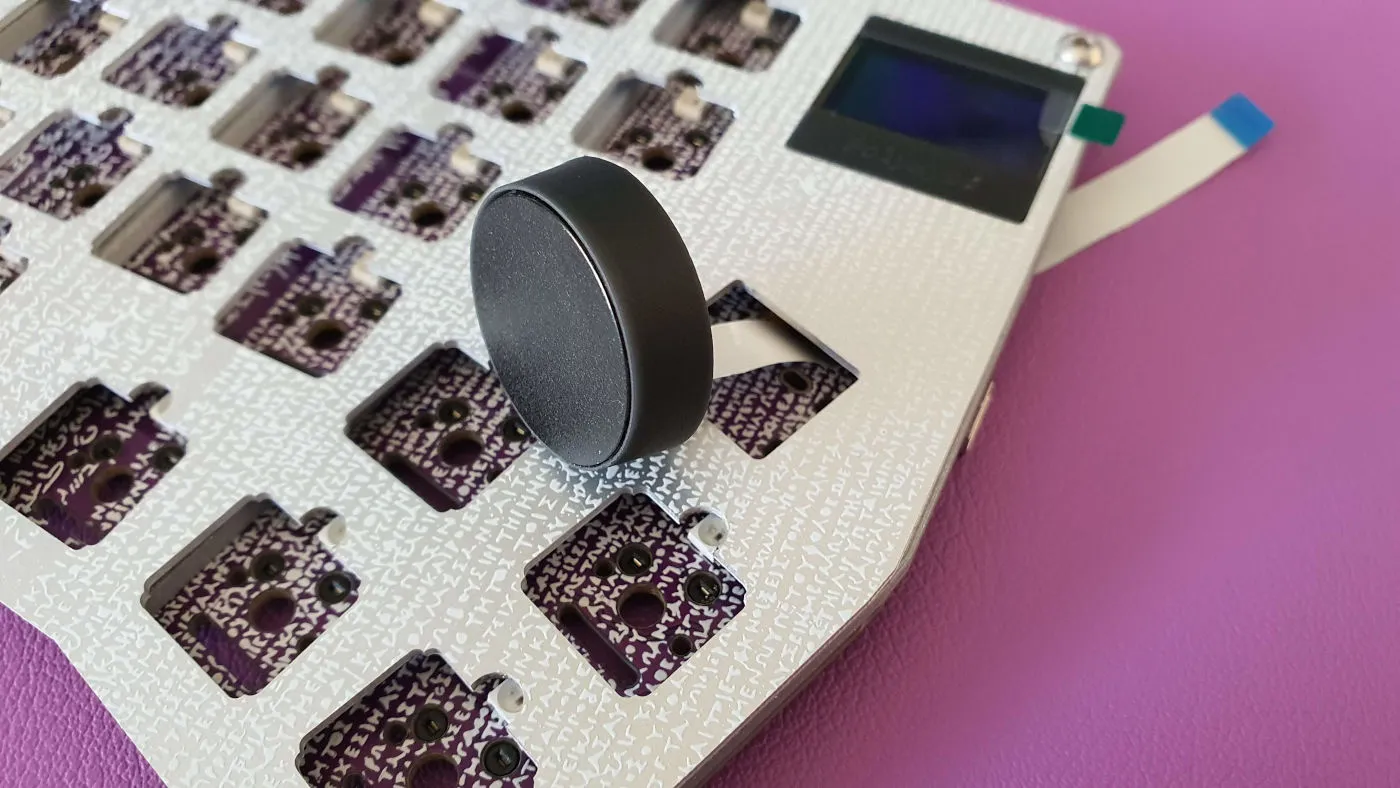
Feed the FPC cable through the slot in the plate, push the trackpad holder into place (press-fit, no glue needed), then insert the FPC into the trackpad socket on the PCB and lock it by lowering the flap. Verify pin 1 alignment. See Cirque trackpad for the full detail.
-
Assemble all 72 keys
If you have not printed the stems yet, decide on a profile first — Keycap Stems has the pictures and the per-row counts. Which profile you pick changes nothing about this step.
For each key:
- Place the 3D-printed stem onto the key switch
- Thread the display FPC cable through the LED slit of the switch
- Align the display against the stem
- Press the clear keycap cover over the stem — the display will slide into the stem pocket as you press it down
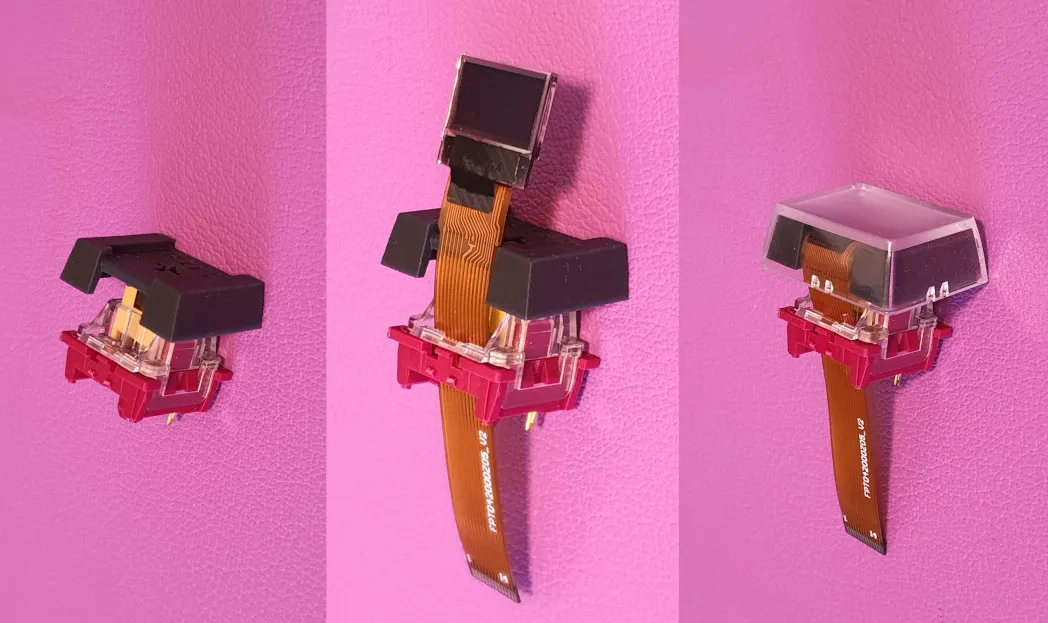
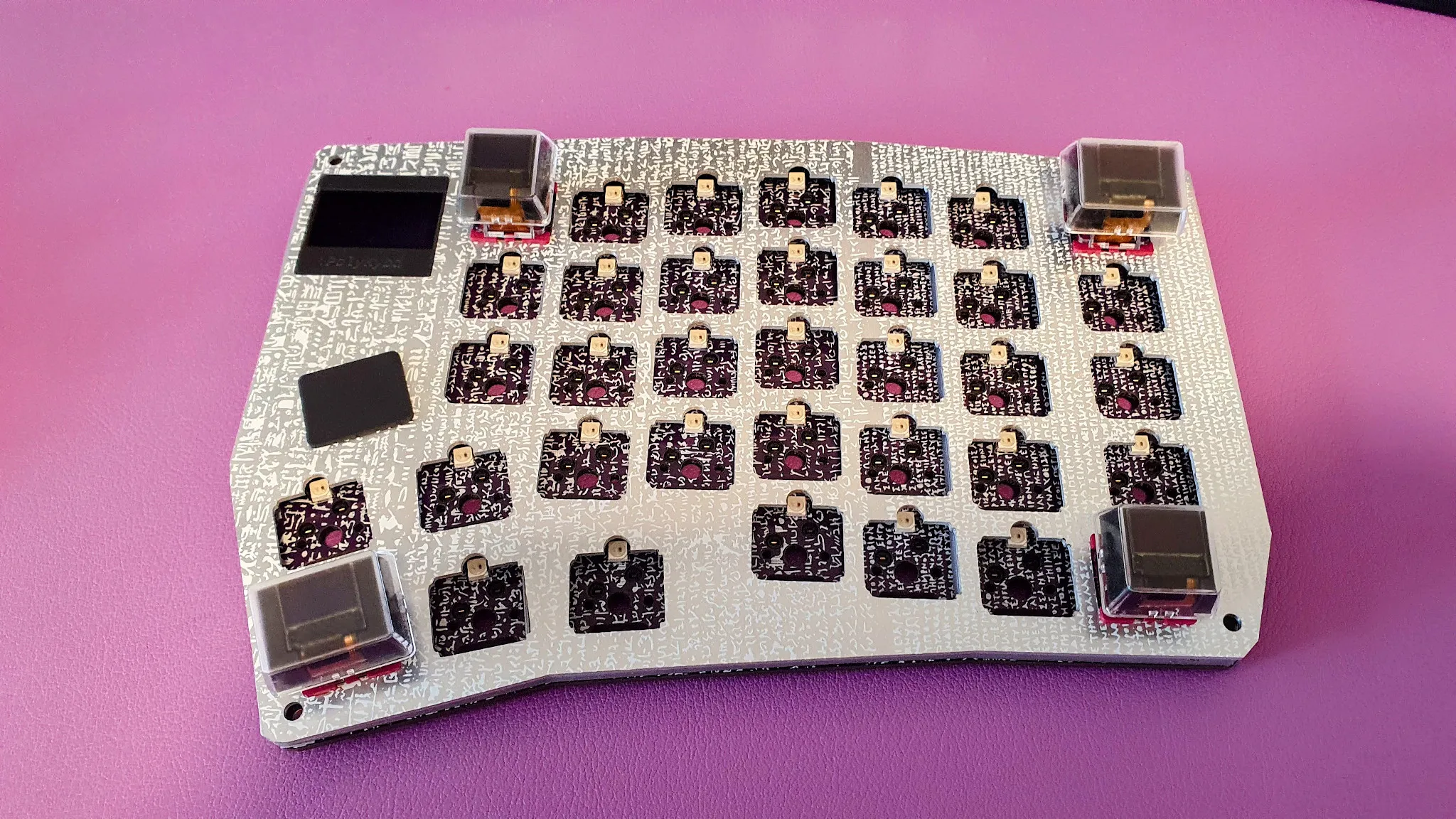
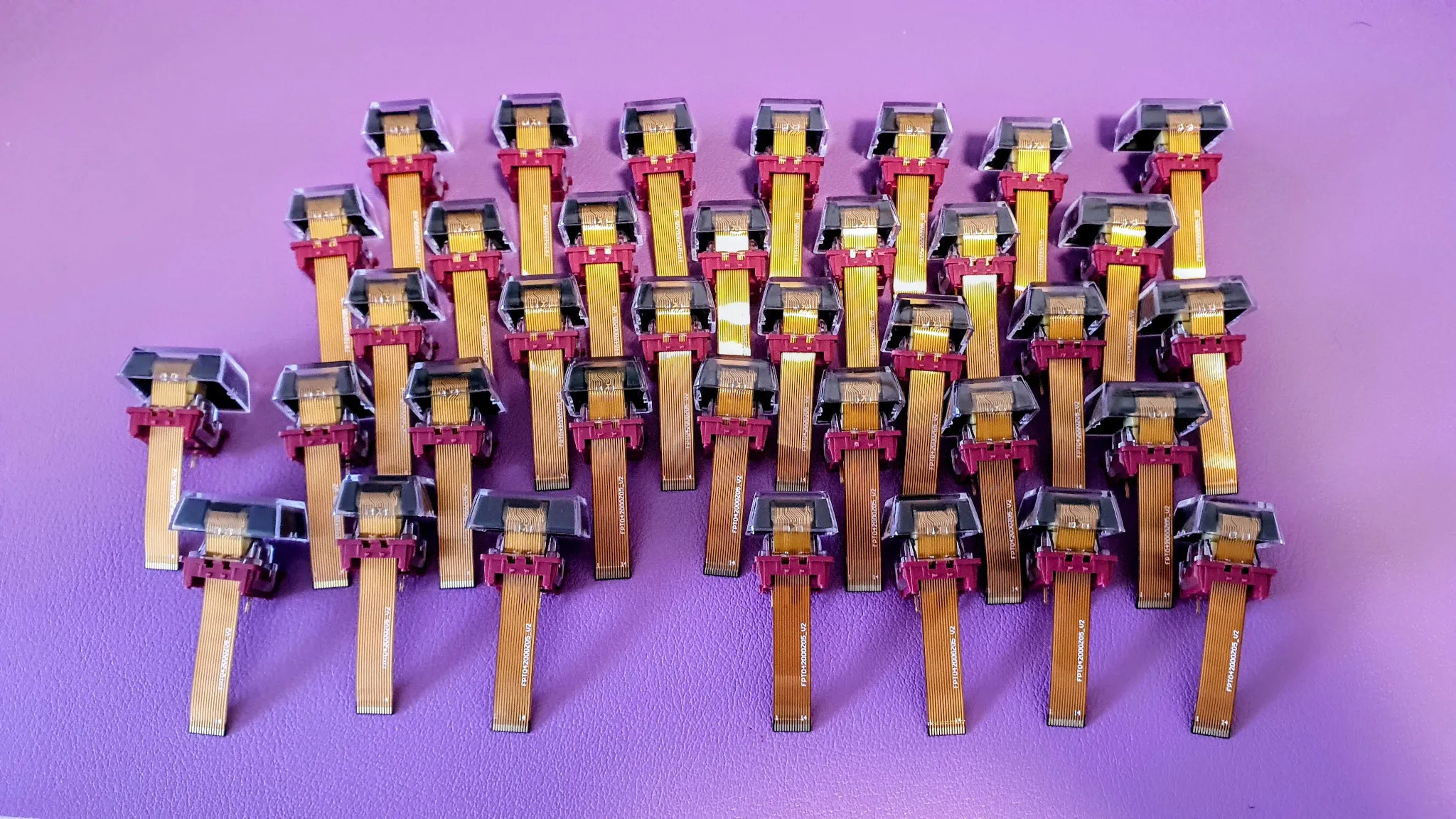
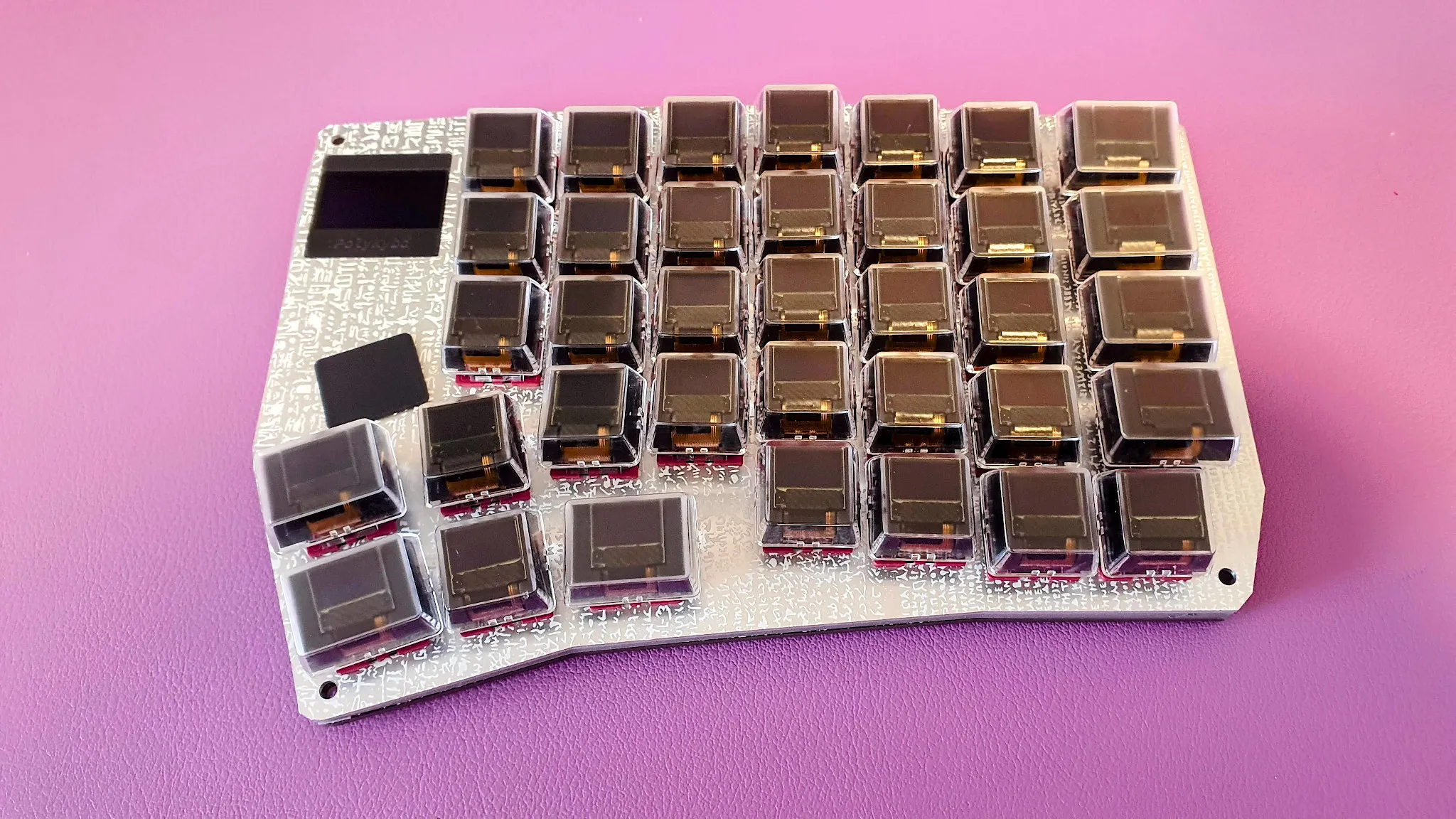
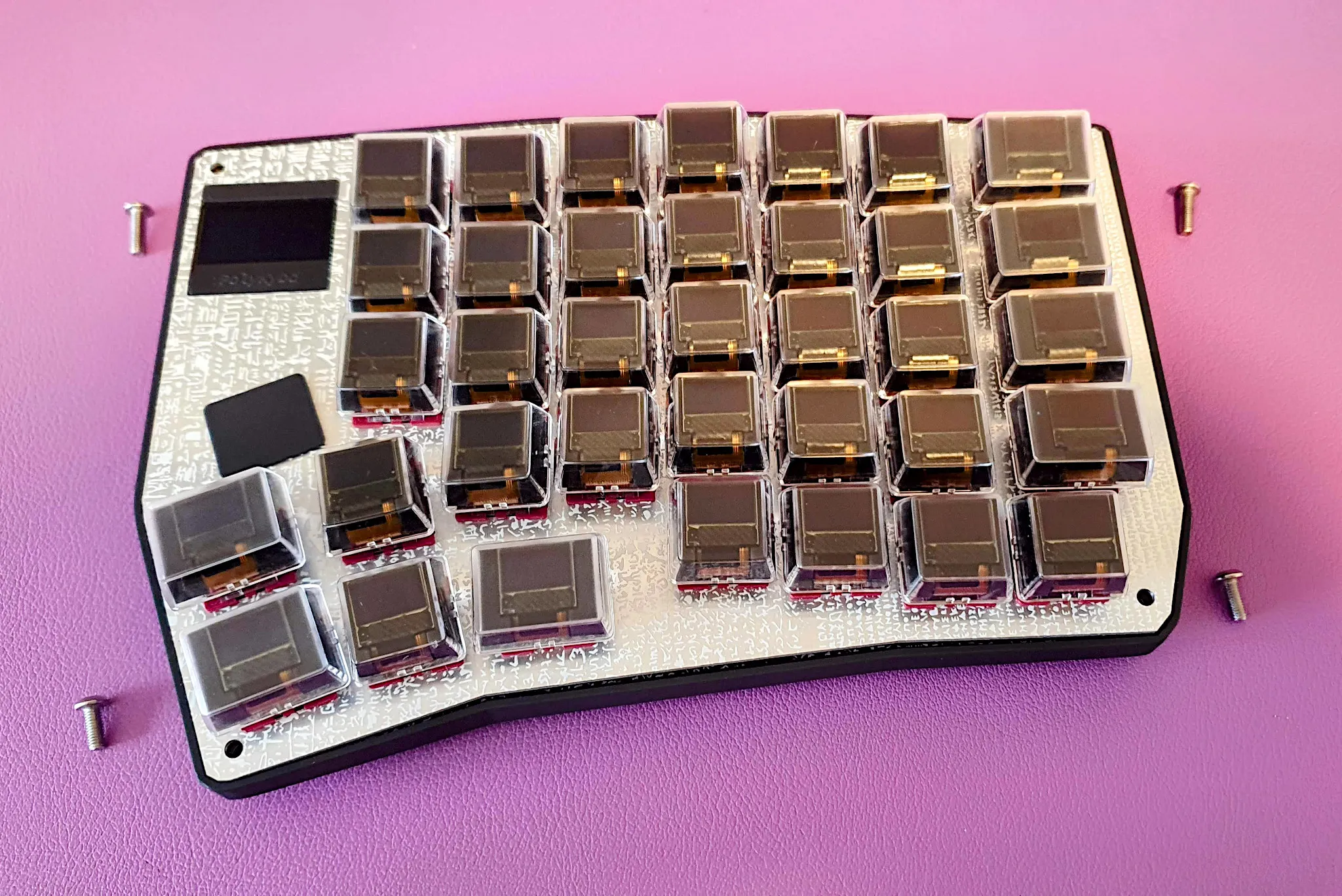
Repeat for all 72 keys. A fully prepared keyboard side of switches looks like this:
-
Insert corner key switches
Insert one assembled switch at each corner first to lock the alignment of plate and PCB:
- Feed the FPC into the PCB slot
- Push the switch straight down into the hot-swap socket
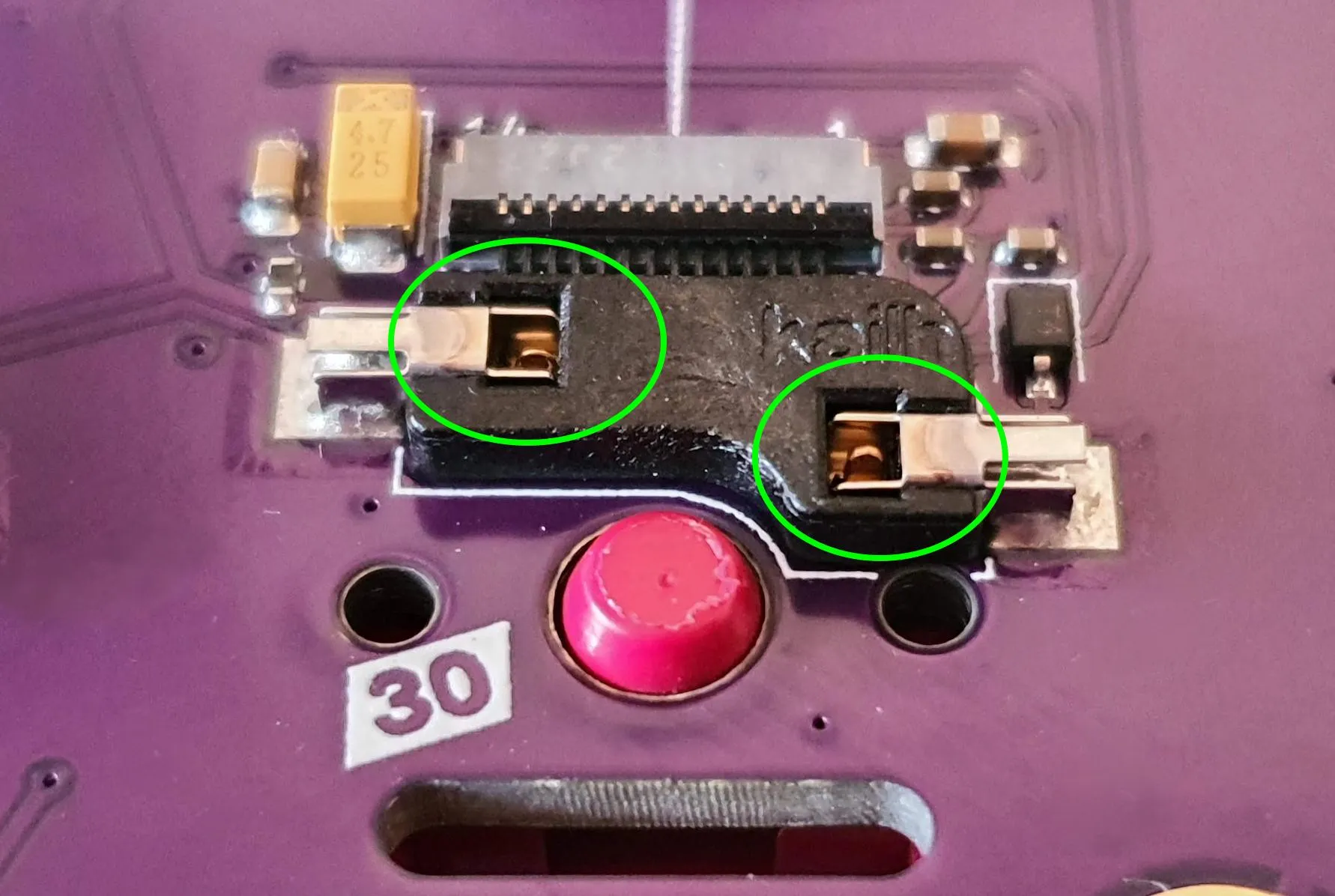
Check from the back that both pins are visible — they confirm the switch is fully seated:
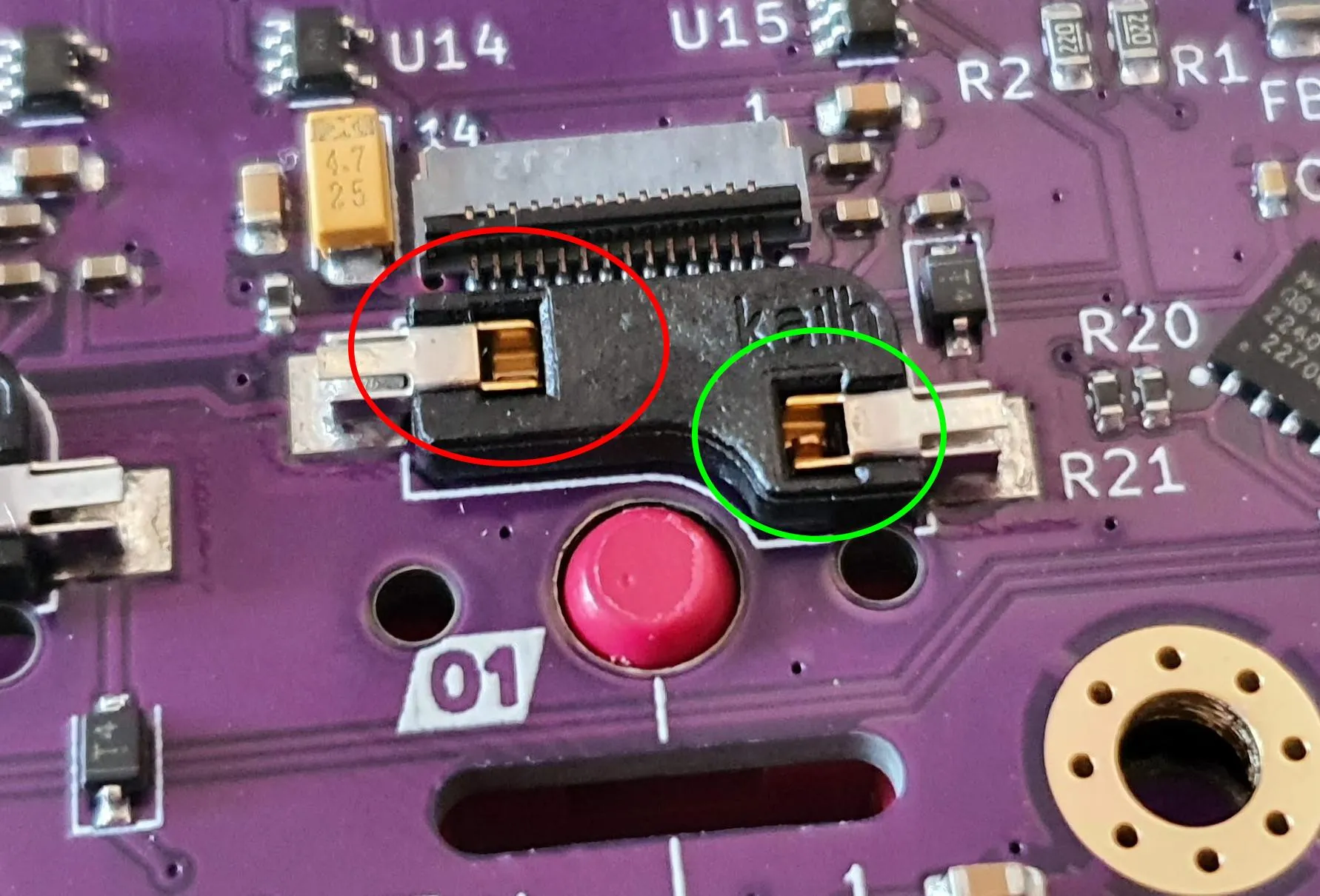
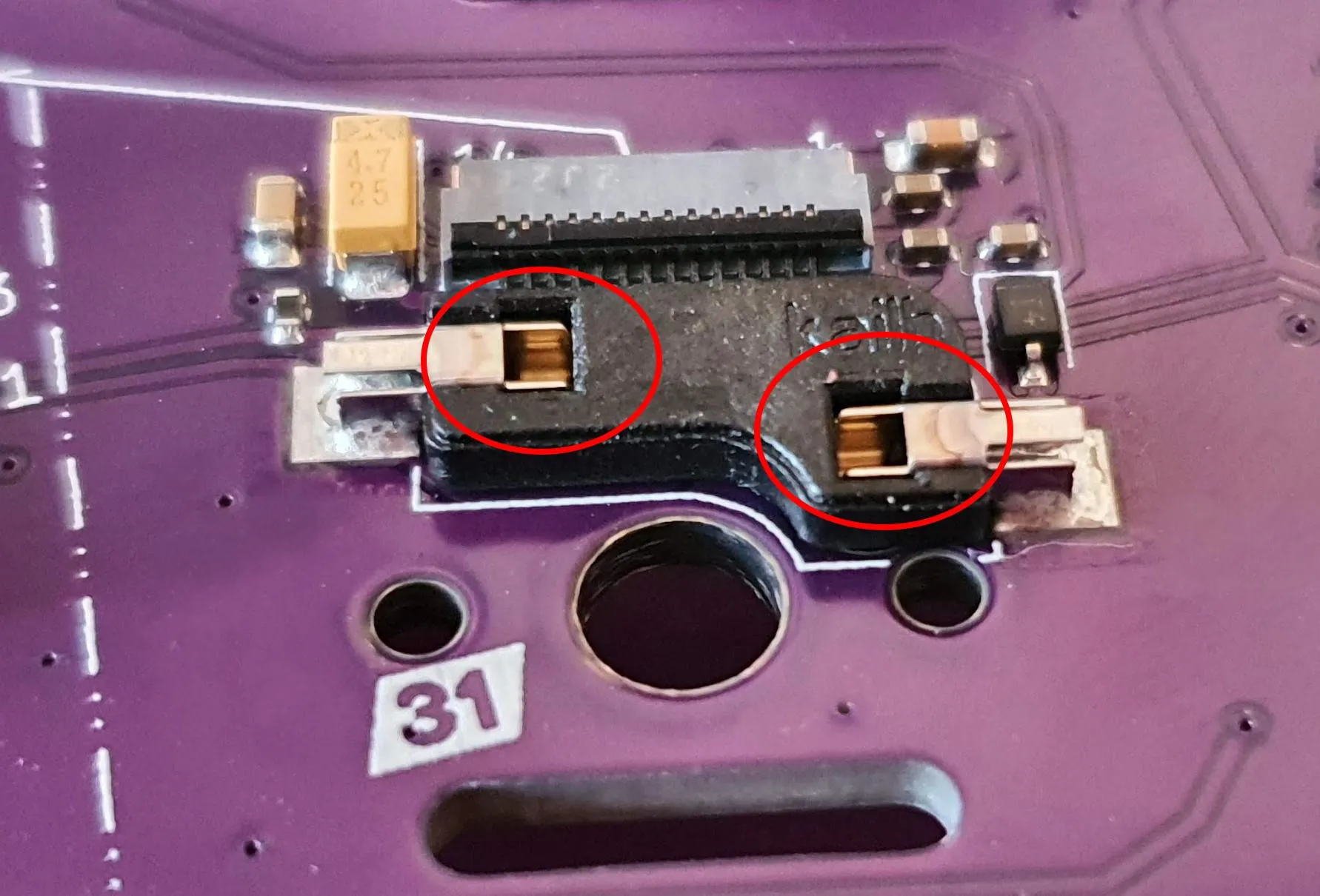
-
Insert remaining switches
Working from the corners inward, insert all remaining assembled switches. Feed each FPC cable through its PCB slot before seating the switch body.
-
Solder the rotary encoder (if using)
With all switches seated and the plate locked in position, solder the encoder pins and trim any excess lead length on the back. See Rotary encoder for encoder-specific notes.
-
Connect FPC cables to the PCB
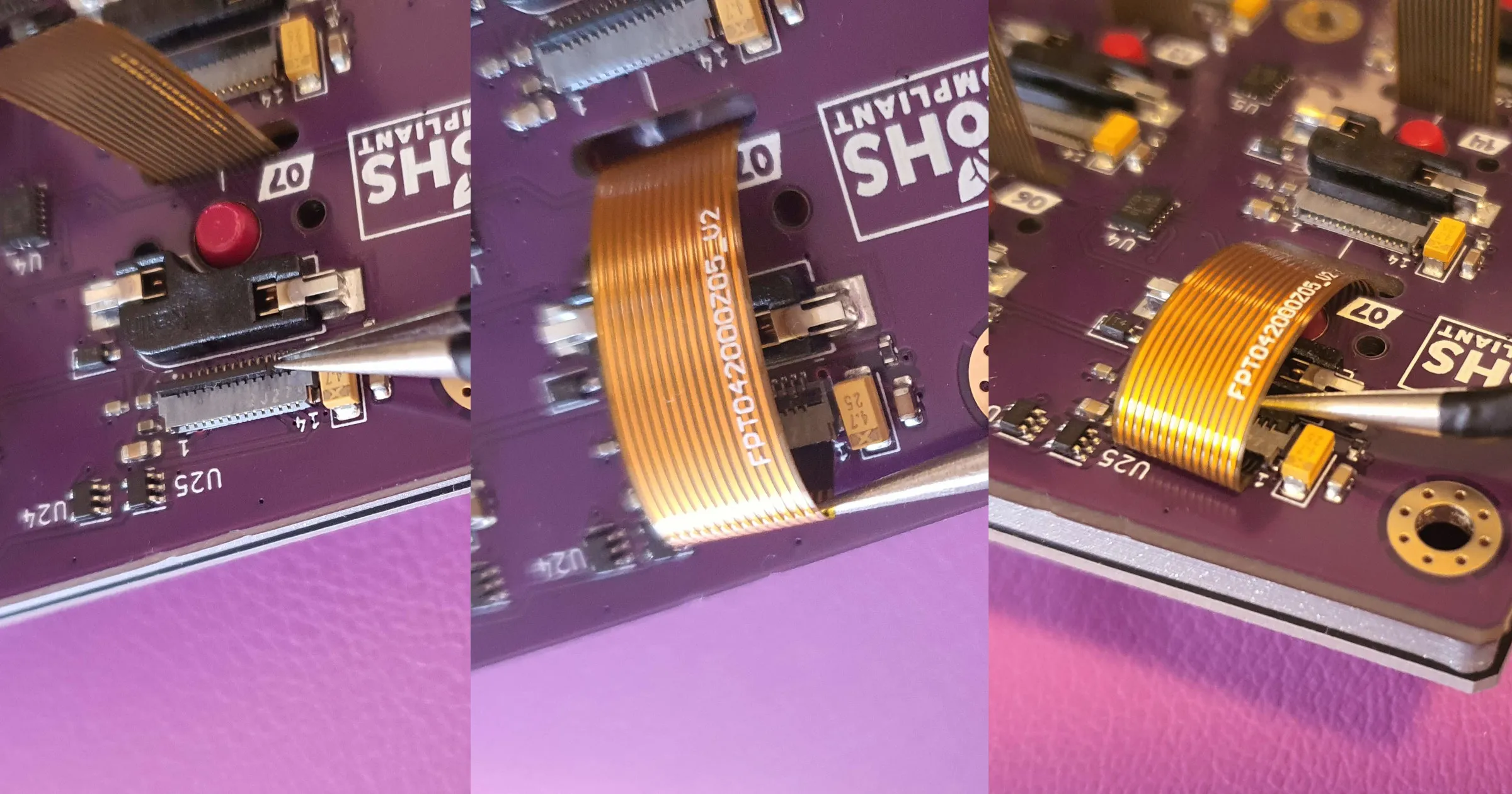
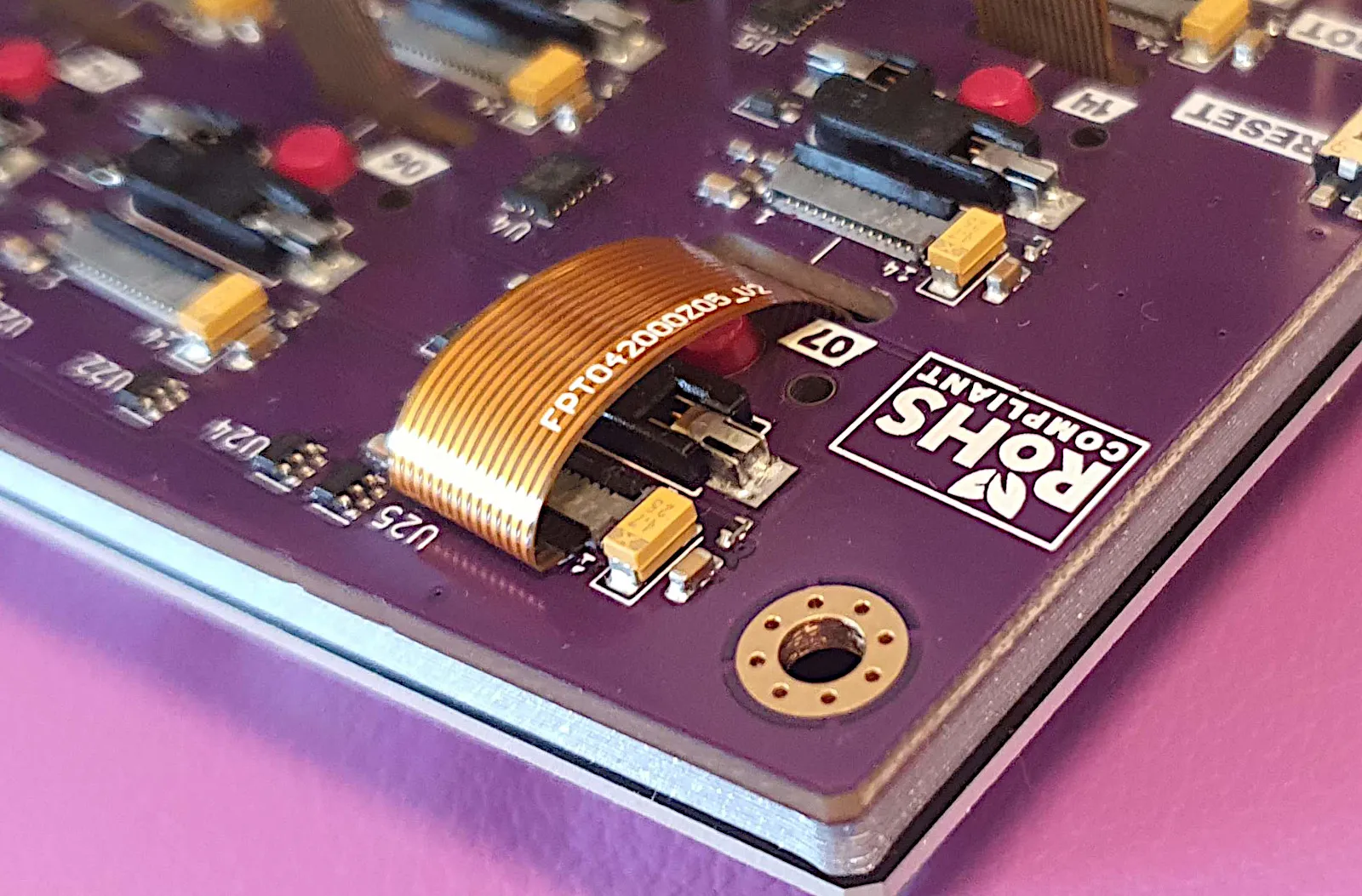
For each switch, open the FPC socket flap (brown lever), insert the FPC cable with the contacts facing down, and close the flap to lock it. The display should light up when powered.
-
Install M3 nuts into case corners
Press the M3 hex nuts into the corner pockets in the 3D-printed case. They should be a firm press fit. If they are loose, a small drop of CA glue will secure them.
-
Lower the PCB assembly into the case
Set the PCB+plate assembly into the case. The PCB should sit flush with the case interior walls. If it does not fit, check that all switch FPC cables are routed inside the case and not caught on the walls.
-
Screw the case together
Insert one M3×10 screw at each corner and tighten until snug. Do not overtighten — resin can crack.
-
Flash the firmware
See Flashing the Firmware for the full procedure.
-
Connect both halves
Connect the short USB-C cable between the two halves. Connect the long USB-C cable from the left half to your computer.
-
Test all keys
Open a text editor and verify that every key registers. Use the QMK key tester (via PolyKybdHost or the QMK website) to check every key systematically.
-
Install PolyKybdHost
See Installation to install the host software and bring the per-key displays to life.
Optional components
Section titled “Optional components”All four are fully optional — the firmware treats each as a clean no-op when it isn’t fitted, and it is auto-detected (there is no option to enable). They are Split72 only; the Split42 has no expansion port.
As noted in step 1, each half has a single physical expansion slot that takes one of these parts, so only one fits per half (a different one on each half is fine). Fit them at the points marked (if using) in the steps above:
| Component | When to fit it | Notes |
|---|---|---|
| Light + proximity sensor | Before the plate | Cannot be added later |
| Trackball | Before the plate | Soldered flush to the PCB |
| Cirque trackpad | Prep before the plate, mount after | FPC feeds through the plate |
| Rotary encoder | Check clearance with the plate, solder after the switches | — |
Light and proximity sensor (LTR-559)
Section titled “Light and proximity sensor (LTR-559)”Highly recommended. With the sensor fitted, the keyboard drives keycap brightness from the measured light level and wakes the displays when your hand approaches — see Display Brightness. The sensor is auto-detected on whichever half you solder it to.
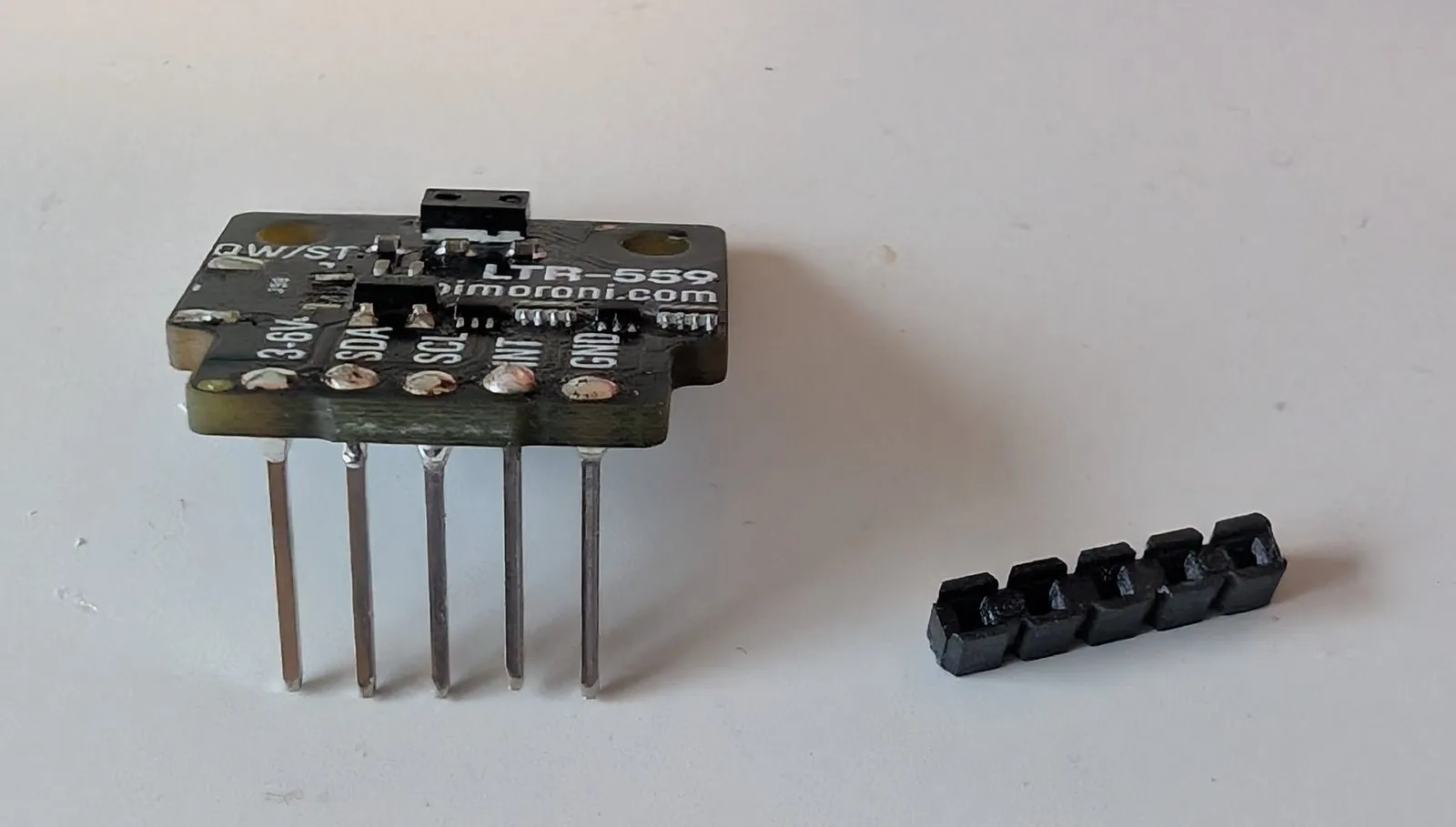
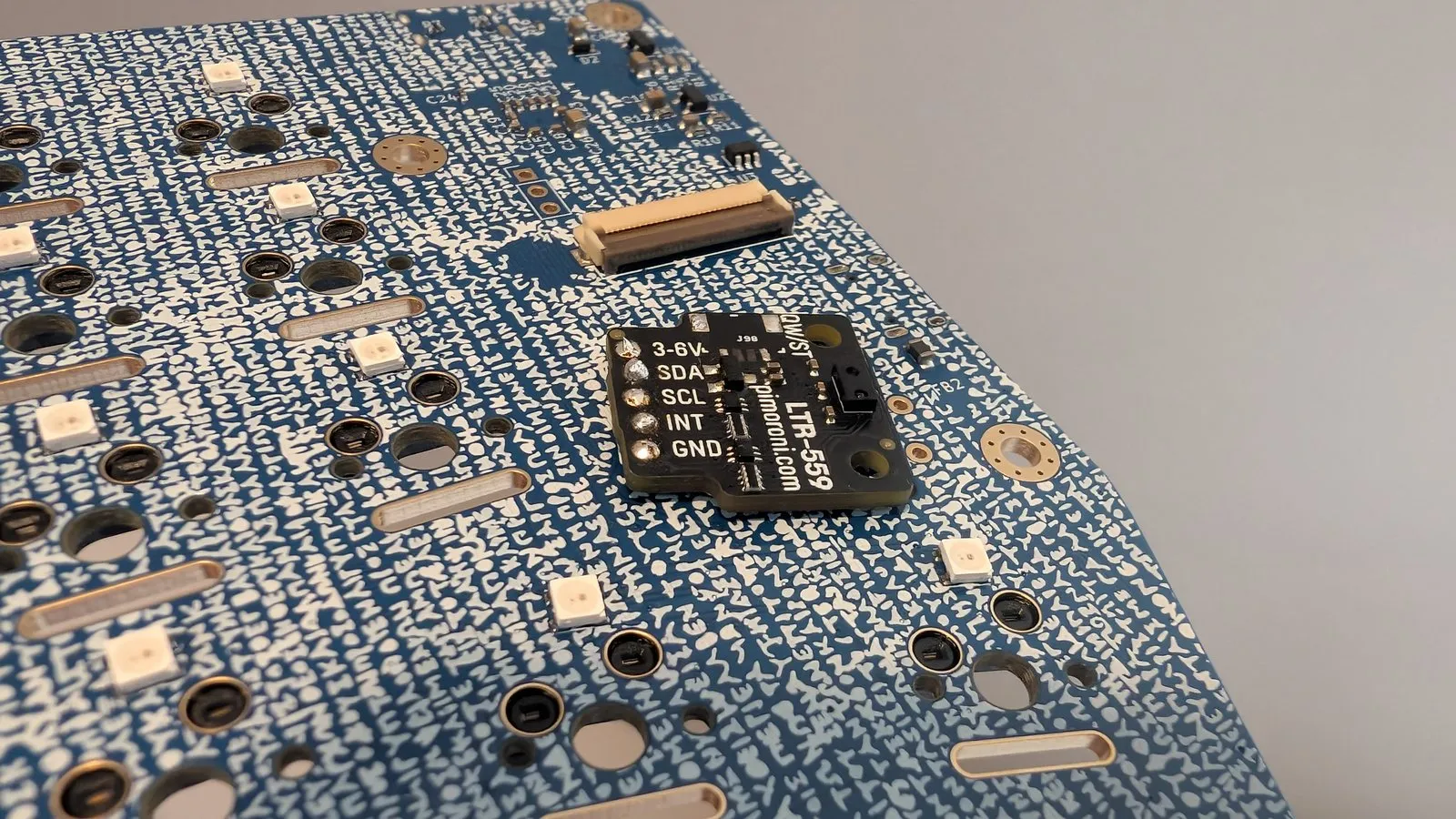
The Split72 PCB has a dedicated, labelled 5-pin footprint (3-6V / SDA / SCL / INT / GND) for the
sensor — its own connector, separate from the encoder and pointing-device connectors in the same
slot. Solder it like this:
-
Solder the 5-pin header into the PCB footprint.
-
Remove the plastic spacer strip from the header — it holds the sensor too high to clear the plate. Push it all the way down and off the pins.
-
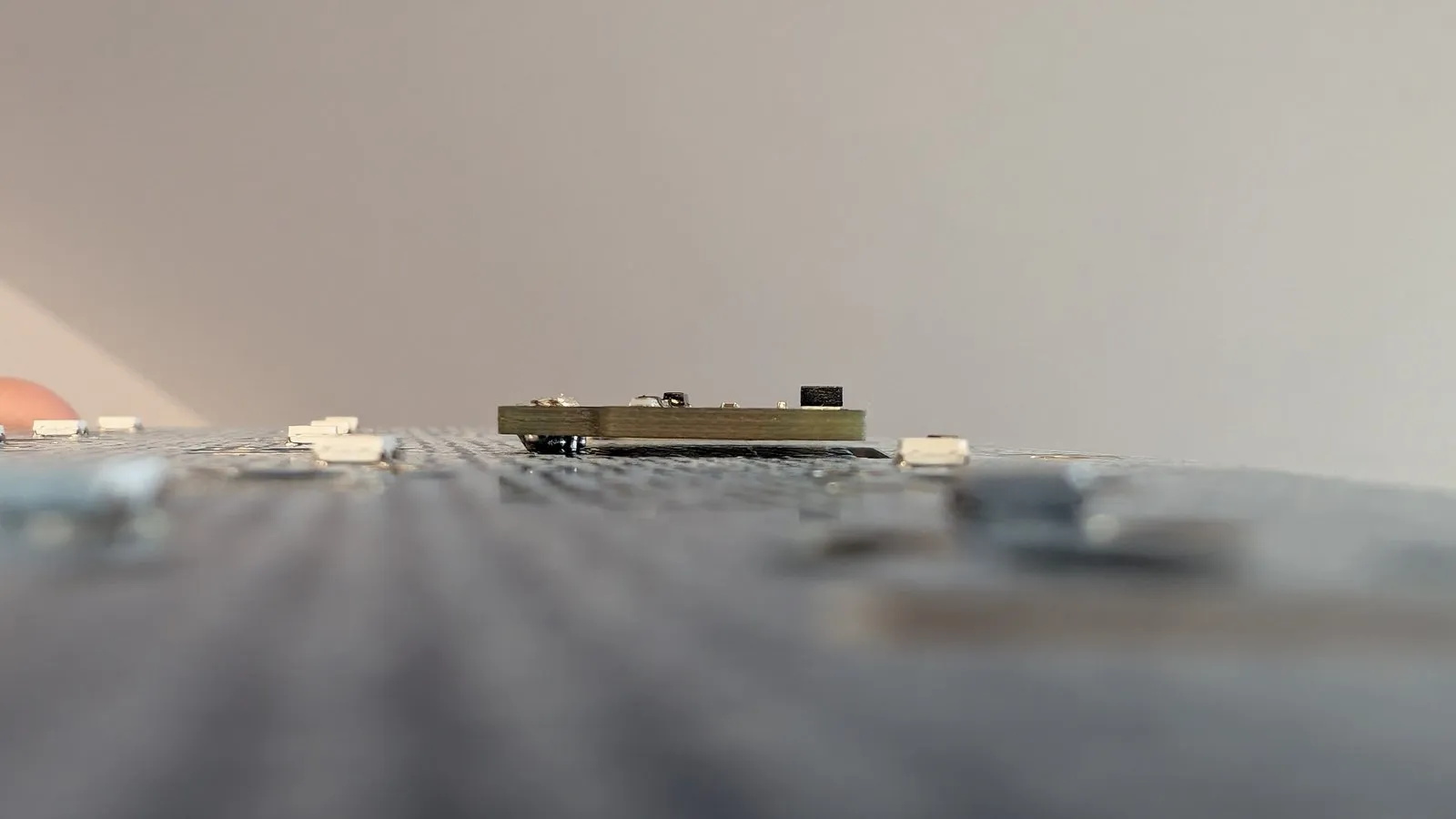
Instead of the plastic spacer, use a piece of paper folded twice (~1–2mm) as a temporary shim to set the sensor at a low height while you solder the board onto the header pins.
-
After soldering, pull the paper back out. The sensor now sits low and flat, just above the PCB.
-
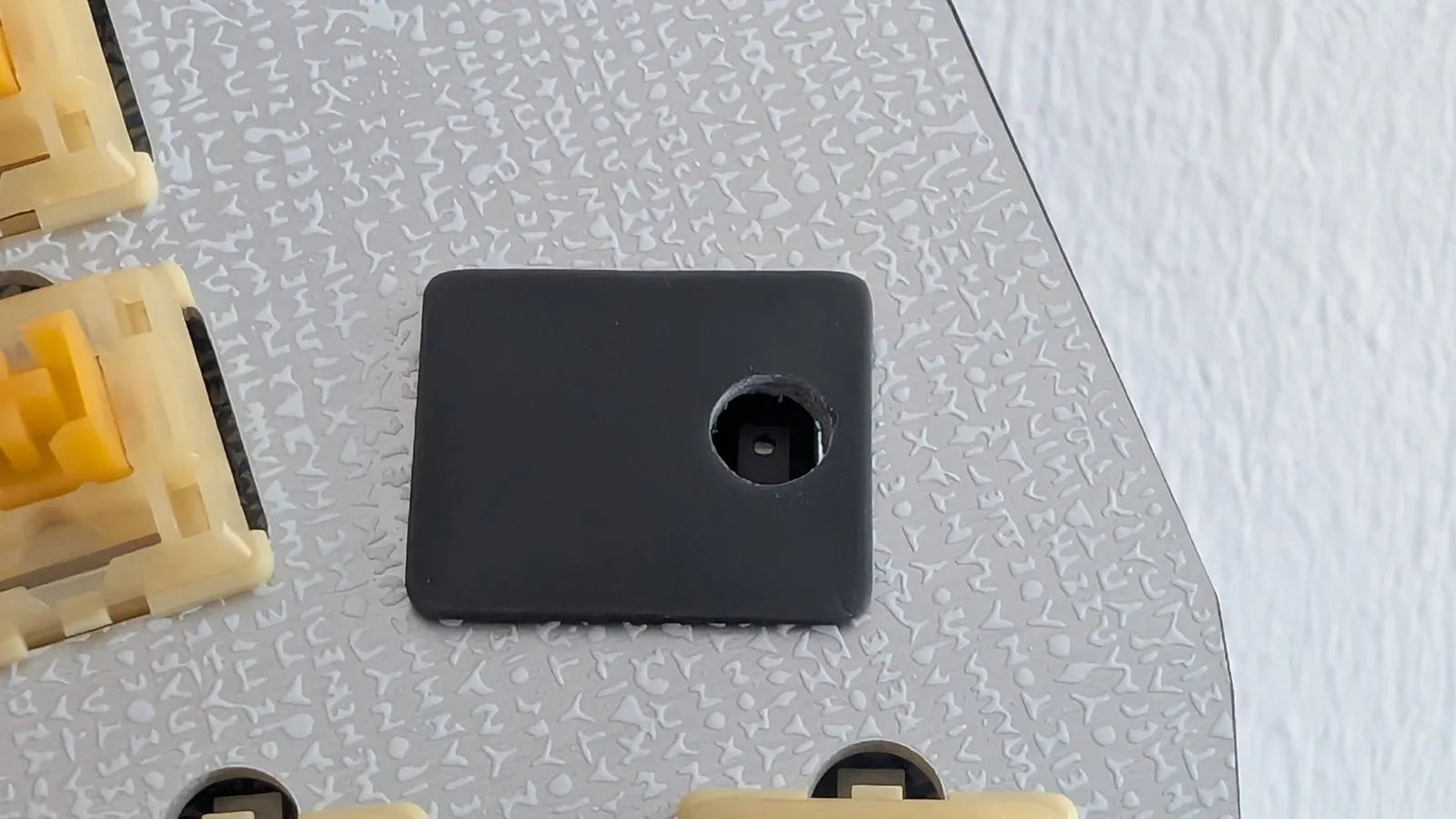
To expose the sensor to ambient light, drill a 5mm hole into the 3D-printed cap on the far right, vertically centered.
Rotary encoder
Section titled “Rotary encoder”Either encoder fits the same PCB footprint. Check its clearance against the plate when you fit the plate, then solder it once all the switches are seated and the plate is locked.
- Alps EC11 encoder — place it on the PCB and temporarily fit the plate on top to verify it clears. Add a strip of Kapton tape over the legs if they come close to the aluminum plate.
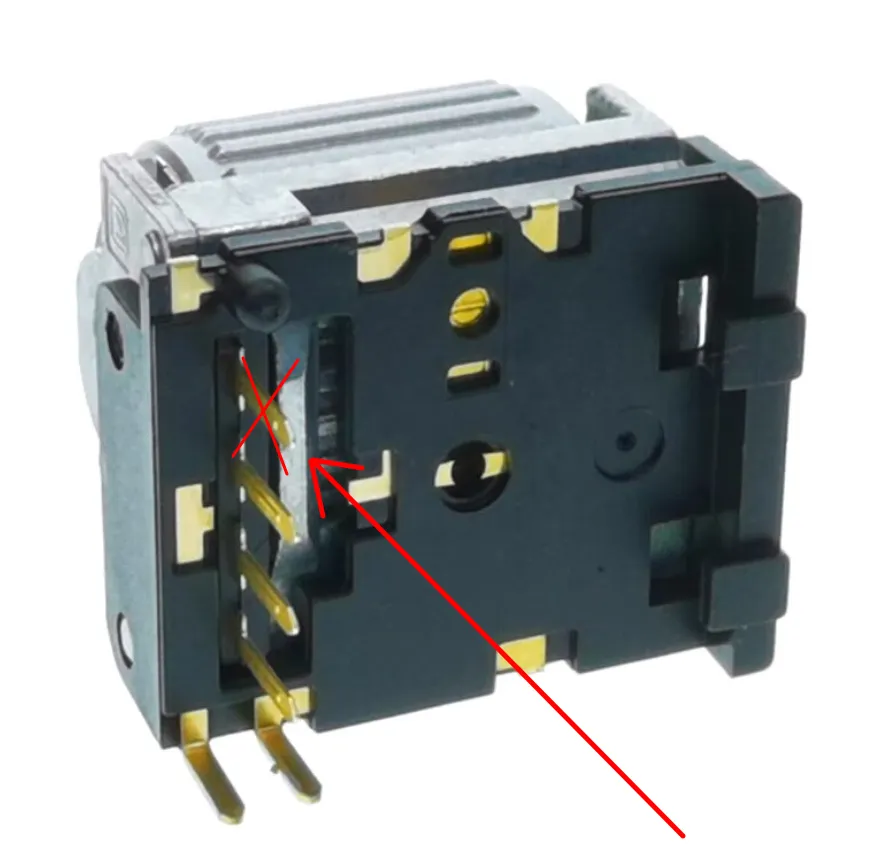
- EVQWGD001 — clip away the last pin before fitting it. Do not solder it yet — fit the plate first to check alignment. This encoder is no longer in production.
Trackball
Section titled “Trackball”The Pimoroni Trackball is soldered to the PCB before the plate goes on. Solder the header pins without the plastic distance spacer (push the spacer off with pliers after soldering, or insert pins from the front and clip the plastic from the back). Apply Kapton tape to the back of the trackball board, then solder it to the PCB flush to the front surface (expect a 1–2mm gap). Cover the front of the trackball with Kapton tape or other insulating material to prevent shorts against the aluminum plate.
Cirque trackpad
Section titled “Cirque trackpad”Prepare the trackpad before the plate goes on, then mount it once the plate is in place.
Preparation: Remove R1 from the back of the trackpad PCB to switch it from SPI to I2C. Connect the 12-pin FPC cable to the trackpad (note the pin 1 marker). Place the trackpad in its 3D-printed holder and secure with a small amount of adhesive. Do not connect it to the PCB yet.
Mounting: Feed the FPC cable through the slot in the plate, push the holder into place (press-fit, no glue needed), then insert the FPC into J37 — the trackpad’s flex socket, which is on the back of the keyboard PCB, not next to the slot itself — and lock it by lowering the flap. Verify pin 1 alignment.
Either pad size needs a 3D-printed holder — see the Parts List for the STLs, and for why the 35mm pad is the one to buy.
Once it is built and flashed, Trackpad covers the gestures: tap to click, tap-and-drag, the top-right right-click corner and the rotary dial for scrolling.