

Context-Aware Overlays
The main PolyKybd feature: every key’s OLED shows an image (“overlay”) that matches the app you are currently using. Switch from your browser to your editor and all 72 keycaps re-label themselves to that app’s shortcuts, with no action from you.
Overlays are driven by PolyKybdHost — the keyboard on its own shows the static legends built into the firmware; the host is what makes them dynamic.
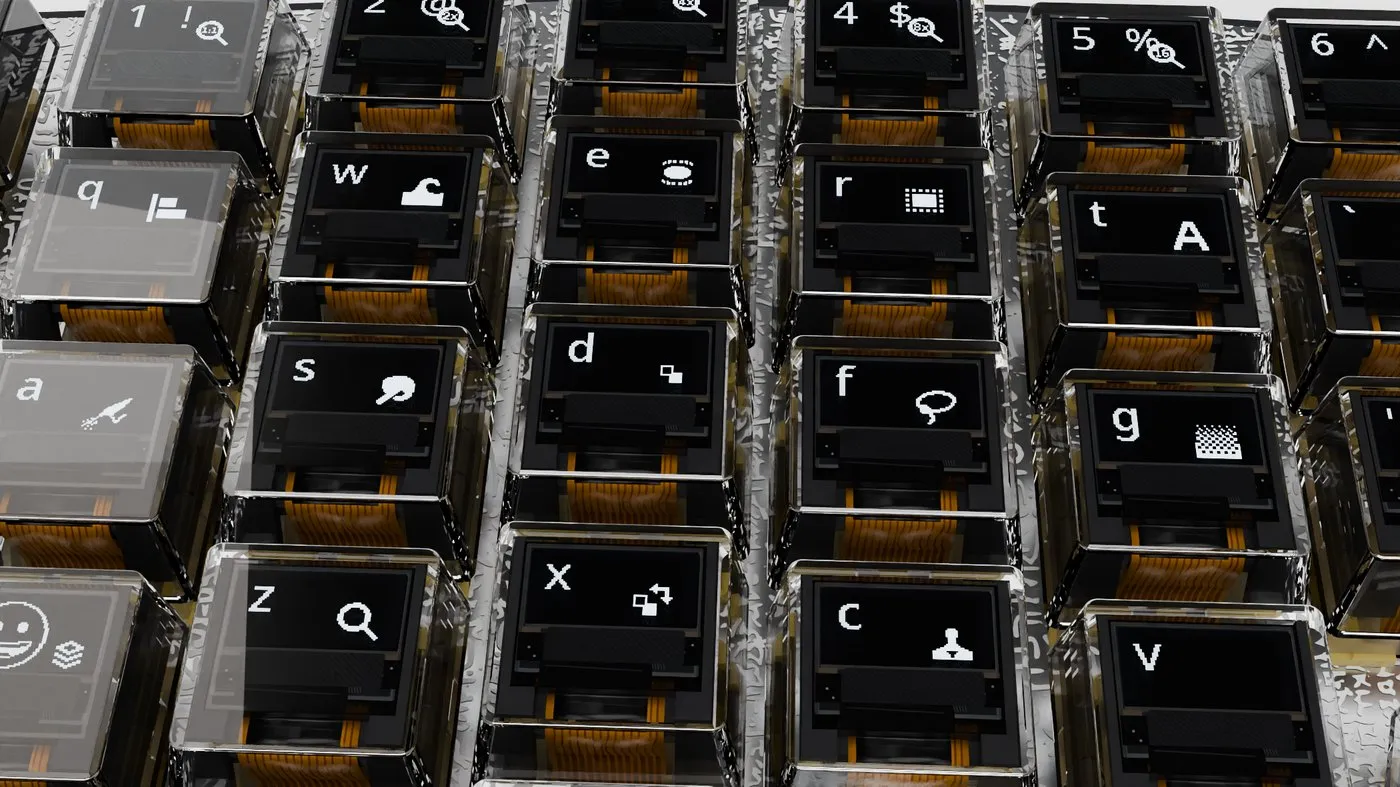
How it works
Section titled “How it works”- PolyKybdHost watches which window is focused on your computer.
- When the active app changes, it sends that app’s keycap images to the keyboard over USB, and both halves update.
Modifier variants
Section titled “Modifier variants”An overlay isn’t a single image per key — each key stores 16 variants, one for every combination of Ctrl, Shift, Alt and GUI (Command on macOS, Win elsewhere). Hold a modifier and the keycaps update to show what each key does with that modifier down, so a shortcut layer is visible before you press a key.
What you need
Section titled “What you need”- PolyKybdHost running on the machine you’re typing on (or relayed from another machine — see Multi-Machine Setup).
- An overlay set for the app. PolyKybdHost ships overlays for the apps listed below, and adding one is a plain image plus a one-line mapping entry — Create App Overlays explains the steps.
Which apps are covered
Section titled “Which apps are covered”These ship with PolyKybdHost and work as soon as it is running. Nothing to install or configure.
Every app has a default set, drawn with Ctrl shortcuts. A ✓ under macOS or Linux means
the app also has its own set for that platform, which the host picks there instead (see
Same app, different platform). An empty cell means that
platform gets the default set, if the app runs there at all.
| App | macOS | Linux | Notes | |
|---|---|---|---|---|
| Browsers | Chrome, Chromium, Edge, Brave, Vivaldi, Opera, Arc | ✓ | ||
| Firefox | ✓ | ✓ | ||
| Safari | ✓ | macOS only, so its one set is drawn for macOS (Command). The web apps below load in Safari too | ||
| Web apps | GitHub | ✓ | Matched by the tab’s URL, in any browser above. See Website-Aware Overlays | |
| GitLab | ✓ | |||
| Jira | ✓ | |||
| Confluence | ✓ | Whiteboards get their own set | ||
| Bitbucket | ✓ | |||
| Google Docs | ✓ | |||
| Miro | ✓ | |||
| Notion | ✓ | |||
| Outlook on the web | ✓ | |||
| Claude (claude.ai) | ✓ | |||
| Claude Code on the web | ✓ | |||
| ChatGPT | ✓ | Codex in a tab gets the browser’s set | ||
| Gmail, Google Calendar, Sheets, Slides, Meet | ||||
| Word, Excel, PowerPoint and OneNote on the web, Teams on the web, Microsoft Copilot | ||||
| Figma, Trello, Linear, Overleaf, Jupyter, draw.io, Excalidraw | ||||
| YouTube | The player keys | |||
| Google Drive, Google Keep | ✓ | Keep: only keep.google.com, not its help pages |
||
| Canva | ✓ | Only the design editor, not the home or help pages | ||
| Photopea | ✓ | Only the editor, not the learn and blog pages | ||
| Todoist | ✓ | Also the desktop app | ||
| Office & documents | Word, Excel, PowerPoint, Outlook | ✓ | ||
| OneNote | ✓ | |||
| Visio, Microsoft 365 Copilot, Microsoft Copilot | ||||
| Acrobat | ✓ | |||
| SumatraPDF, Okular | ||||
| LibreOffice Writer, Calc, Impress | ✓ | Identified by window title; Draw, Base and Math get a shared LibreOffice set | ||
| WPS Office Writer, Spreadsheets, Presentation | Windows and Linux. In the all-in-one window, the set follows the file extension in the title | |||
| ONLYOFFICE Document, Spreadsheet, Presentation | ✓ | One window for all three: the set follows the file extension in the title. On macOS the tabbed main window gets the Document set | ||
| Creative | Photoshop, Illustrator, After Effects, Premiere Pro | ✓ | ||
| DaVinci Resolve | ✓ | |||
| GIMP, Krita | ✓ | |||
| Inkscape | ||||
| Figma | ✓ | |||
| Lightroom Classic, InDesign | ✓ | |||
| Affinity, Affinity Designer, Photo, Publisher | ✓ | |||
| FreeCAD, OpenSCAD | ✓ | ✓ | ||
| Autodesk Fusion | ✓ | |||
| Blender | ✓ | 14 sets that follow the mode, with the add-on | ||
| AutoCAD, Clip Studio Paint | ✓ | Windows and macOS | ||
| CapCut | ✓ | Windows and macOS | ||
| OBS Studio | ✓ | ✓ | ||
| Audio & music | Ableton Live, FL Studio, REAPER | ✓ | ||
| MuseScore, Audacity | ✓ | ✓ | ||
| Spotify, VLC | ✓ | |||
| foobar2000, Winamp | Windows only | |||
| 3D printing | PrusaSlicer (and its G-code viewer), OrcaSlicer | ✓ | ||
| Bambu Studio | ✓ | ✓ | ||
| ArtCraft | PhotoCraft, VectorCraft, DesignCraft, FigCraft, LightCraft, EffectCraft, FilmCraft, SoundCraft, DeckCraft, WordCraft, GridCraft, PDFCraft, CADCraft | ✓ | ||
| Development | VS Code | ✓ | ✓ | |
| Visual Studio | ||||
| JetBrains IDEs: IntelliJ IDEA, PyCharm, CLion, WebStorm, GoLand, Rider, PhpStorm, RubyMine, DataGrip, RustRover, Android Studio | ✓ | ✓ | Linux has separate GNOME and KDE sets | |
| Sublime Text | ✓ | ✓ | ||
| Notepad++ | ||||
| KiCad | ✓ | PCB editor, schematic, symbol and footprint editors, 3D viewer and Gerber viewer, identified by window title. The macOS set is for the PCB editor | ||
| Eclipse, Arduino IDE 2 | ✓ | ✓ | ||
| Ghidra, Wireshark, Postman, GitHub Desktop | ✓ | Ghidra: the CodeBrowser window | ||
| DBeaver | ✓ | ✓ | ||
| RStudio, MATLAB | ✓ | |||
| Mathematica | ✓ | ✓ | ||
| Vim, Neovim, Emacs, GNU nano | In a terminal, and GUI Vim and Emacs. A set per mode, with the plugin | |||
| Cursor, Windsurf / Devin Desktop, Zed | ✓ | ✓ | ||
| GitKraken | ✓ | |||
| Sourcetree | ✓ | Windows and macOS | ||
| SQL Server Management Studio | Windows only | |||
| Notes | Obsidian, Notion desktop app | ✓ | ||
| Joplin, Logseq | ✓ | |||
| Evernote | ✓ | Windows and macOS | ||
| Communication | Slack, Discord, Teams, Zoom | ✓ | ||
| Webex, Webex Meetings | ✓ | |||
| Thunderbird | ✓ | ✓ | The compose window has its own set | |
| Telegram Desktop | ✓ | On macOS only the app named Telegram Desktop; the Mac App Store app named Telegram has other keys and keeps the generic icons | ||
| Signal Desktop | ✓ | ✓ | ||
| Passwords | KeePassXC | ✓ | ✓ | |
| KeePass 2 | ✓ | Windows, and Linux with Mono | ||
| AI assistants | Claude desktop app | ✓ | Shows the Code tab’s shortcuts in both tabs, which share one window | |
| ChatGPT desktop app, Codex desktop app | ✓ | |||
| LM Studio, Jan | ✓ | |||
| Windows | Explorer, Task Manager, Notepad, Calculator, Paint, Paint.NET, WordPad, Photos, Snipping Tool, the lock screen | Windows only | ||
| Sticky Notes | ||||
| Sound Recorder | Also matches its Windows 10 name, Voice Recorder | |||
| Windows Terminal, 7-Zip | ||||
| Everything, Total Commander | ||||
| PowerToys Command Palette, PowerToys Run | Only those two windows; the other PowerToys features are global shortcuts | |||
| Linux | GNOME Files (Nautilus) | Linux only | ||
| Terminals & transfer | PuTTY, WinSCP | |||
| Games | Age of Empires II: HD Edition and the CD version | Default hotkeys: go-to-building keys, control groups, chat, function keys | ||
| Age of Empires II: Definitive Edition | The same keys, its own Esc mark. Windows and Steam with Proton | |||
| Age of Empires IV | Default Grid Keys | |||
| Command & Conquer Remastered Collection | Keys drawn from your own Tiberian Dawn files when they are installed | |||
| OpenRA: Red Alert, Tiberian Dawn | Keys drawn from the game files OpenRA installed | |||
| Warcraft III (classic 1.26 to 1.31), Wargus | ||||
| RimWorld, OpenTTD, OpenRCT2 | ||||
| Factorio | ✓ | |||
| League of Legends | The in-game window, Click-to-Move defaults. Ability keys stay blank because they depend on the champion. Windows and macOS | |||
| Steam client | A separate set for Big Picture mode, chosen by the English window title | |||
| Counter-Strike 2, Dota 2 | Windows and Linux. The Esc key shows the game logo in place of its legend |
Notion, Claude and ChatGPT appear twice because the desktop app and the web version are matched separately.
Google Drive, KeePassXC and KeePass 2 need PolyKybdHost 1.18.0. Canva, Photopea, Todoist, Google Keep, WPS Office, Telegram, Signal, League of Legends and Steam need PolyKybdHost 1.19.11. ONLYOFFICE, AutoCAD, Clip Studio Paint, CapCut, OBS Studio, foobar2000, Winamp, GitKraken, Sourcetree, SQL Server Management Studio, Joplin, Logseq, Evernote, Everything, Total Commander, PowerToys, Counter-Strike 2 and Dota 2 need the next PolyKybdHost release after 1.19.11.
In Age of Empires II the letter keys build, train and give orders, and their meaning changes with the selection, so only keys that always do the same thing have icons. Each digit shows a different unit as a group (spearmen on 1, archers on 2, cavalry on 3 and so on): the bare digit selects the group, and with Ctrl, where the icon has a plus, it creates it. The game does not tie a group number to a unit type; the icons only suggest a habit. The Esc mark is drawn without the key legend from firmware 1.9.15; the control groups and the Definitive Edition set need PolyKybdHost 1.17.82.
Firefox, Blender, the ArtCraft apps, Cursor, Windsurf, Zed, LM Studio and Jan need PolyKybdHost 1.17.18 or later. The games, the three slicers, Eclipse, Arduino IDE 2, Ghidra, Wireshark, Trello, Figma on the web, YouTube, Vim, Emacs and nano need PolyKybdHost 1.17.82 or later.
Blender: overlays that follow the mode
Section titled “Blender: overlays that follow the mode”Blender’s shortcuts depend on the mode you are in and on the editor under the mouse. Ctrl+R
is Loop Cut in Edit Mode, Sculpt Mode has its own brush keys, and the Node Editor binds a
different set again. With the PolyKybd Context Reporter add-on, the keycaps change with the mode:
there are 14 shortcut sets, from Object and Edit Mesh to Sculpt, Pose, the paint modes, Node,
UV, Dope Sheet and Graph Editor.
Without the add-on, Blender still gets an overlay, but only with the keys every 3D View mode shares.
-
Build the add-on. In a PolyKybdHost checkout, run
./build.shin theblender-addon/folder. It writesdist/polykybd_context_reporter-<version>.zip. -
Install it in Blender 4.2 or later. Open Edit → Preferences → Get Extensions, then the drop-down at the top right, Install from Disk…, and pick the zip. On Blender 3.6–4.1, use Edit → Preferences → Add-ons → Install… and tick PolyKybd Context Reporter. That older path is untested.
-
Keep PolyKybdHost running. The add-on reports to the same local receiver as the browser extension, which is on by default. Nothing else needs configuring.
The add-on sends only the mode and the editor name, and only to 127.0.0.1 on this computer.
It sends no file names, object or scene data, and no window title. The host uses a report only
while Blender is the focused app, so a Blender in the background never changes the keycaps of
the app in front. You can pause reporting in the add-on’s preferences without uninstalling it.
Vim, Emacs and nano: overlays that follow the mode
Section titled “Vim, Emacs and nano: overlays that follow the mode”In Vim the same key does different things in Normal, Insert and Visual mode, and Emacs binds different keys in an Org or a Dired buffer. With a small plugin the editor reports its mode, and the keycaps change with it. This also works when the editor runs in a terminal: while the terminal is the focused app, the host shows the mode of the editor you last typed in.
- Vim and Neovim get a set per mode: Normal, Insert, Visual, Select, Replace, the command line
and the terminal. The plugin is in
vim-plugin/in a PolyKybdHost checkout. Copy it to~/.vim/pack/polykybd/start/polykybd(Vim) or load it with your plugin manager. It needs Vim 8.2.3430 or later, or Neovim 0.7 or later. - Emacs gets a global set and its own sets for Org and Dired buffers. The package is in
emacs-package/. On Emacs 29 or later, install it withpackage-vc-installand turn it on with(polykybd-mode 1). Its README lists the other ways. - GNU nano has no plugin. The host finds it by the terminal’s window title, so the shell must
put the running command into the title. Updates → Show the running command in the terminal
title… sets that up for bash, zsh and PowerShell, and
polyctl shell-integration installdoes the same.
Without a plugin, a terminal shows its own overlay or the shortcuts the host finds for it. The
plugins send the editor’s name, its mode, whether it has the focus, its process ID and the time
since the last keypress, and only to 127.0.0.1 on this computer.
Same app, different platform
Section titled “Same app, different platform”Which shortcuts an app uses depends on the platform it runs on: Sublime Text binds Cmd+P on
macOS and Ctrl+P on Windows and Linux. A single set of artwork therefore can’t be right
everywhere, so where an app has per-OS overlays the host picks the one matching your OS —
Cmd artwork on macOS, Ctrl artwork elsewhere — with nothing to configure.