
Languages & Unicode Input
PolyKybd does two related things with languages: it can switch its on-screen keyboard layout between 161 languages, and it can type Unicode characters (emoji, accented letters) on any OS.
The language layer
Section titled “The language layer”PolyKybd ships with 161 keyboard-language layouts. Press the Language/Globe key
[ 🌐 ] to open the language picker. On this layer each key shows a country flag and its
xx-YY language code (for example de-DE, fr-FR, es-MX), with a frame drawn around the
currently selected language.
The languages are sorted by continent, with one tab per continent. When a continent has more languages than keys, the two page keys show the current page and the page count next to the arrow, for example ▶ 2/3.
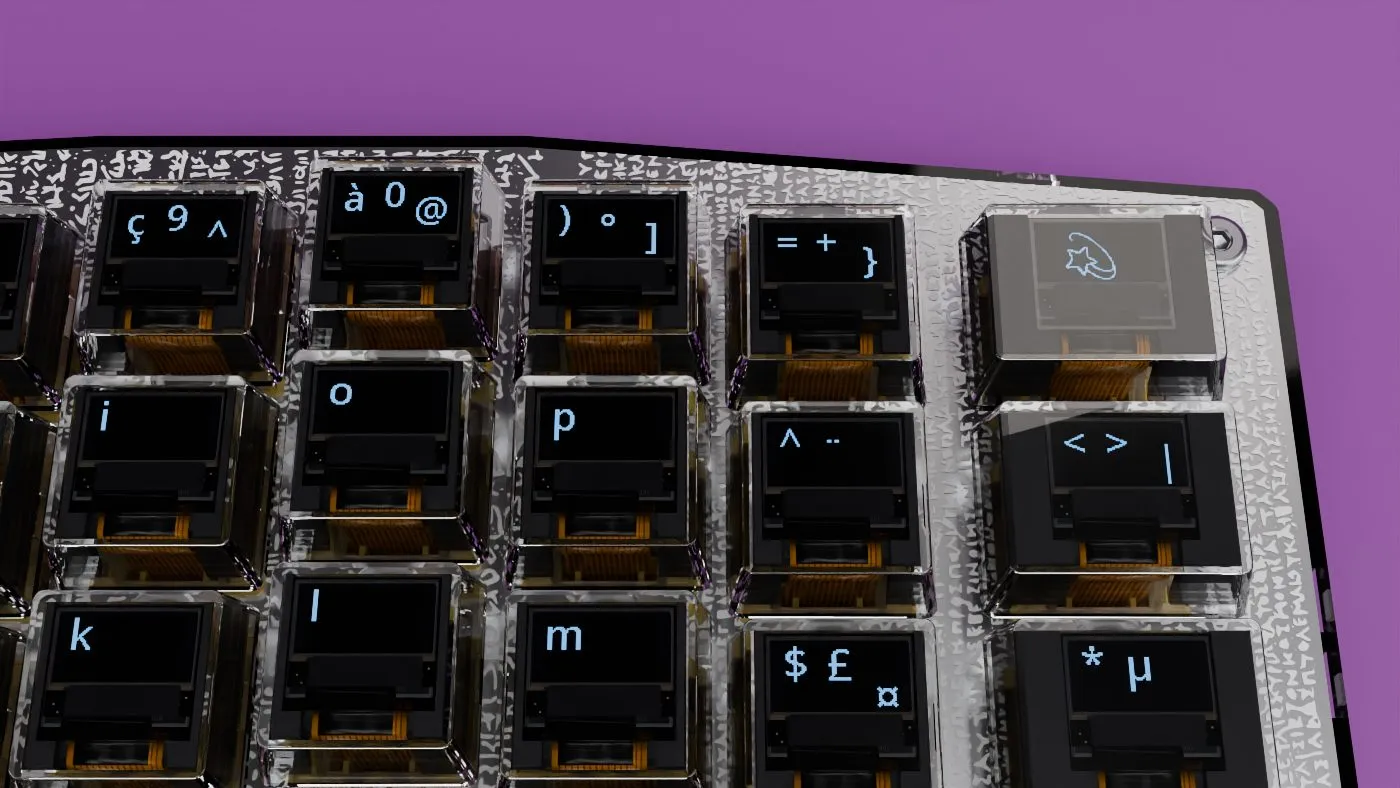
Switching the layout redraws every keycap, accents and AltGr symbols included. Here the right half on French AZERTY:
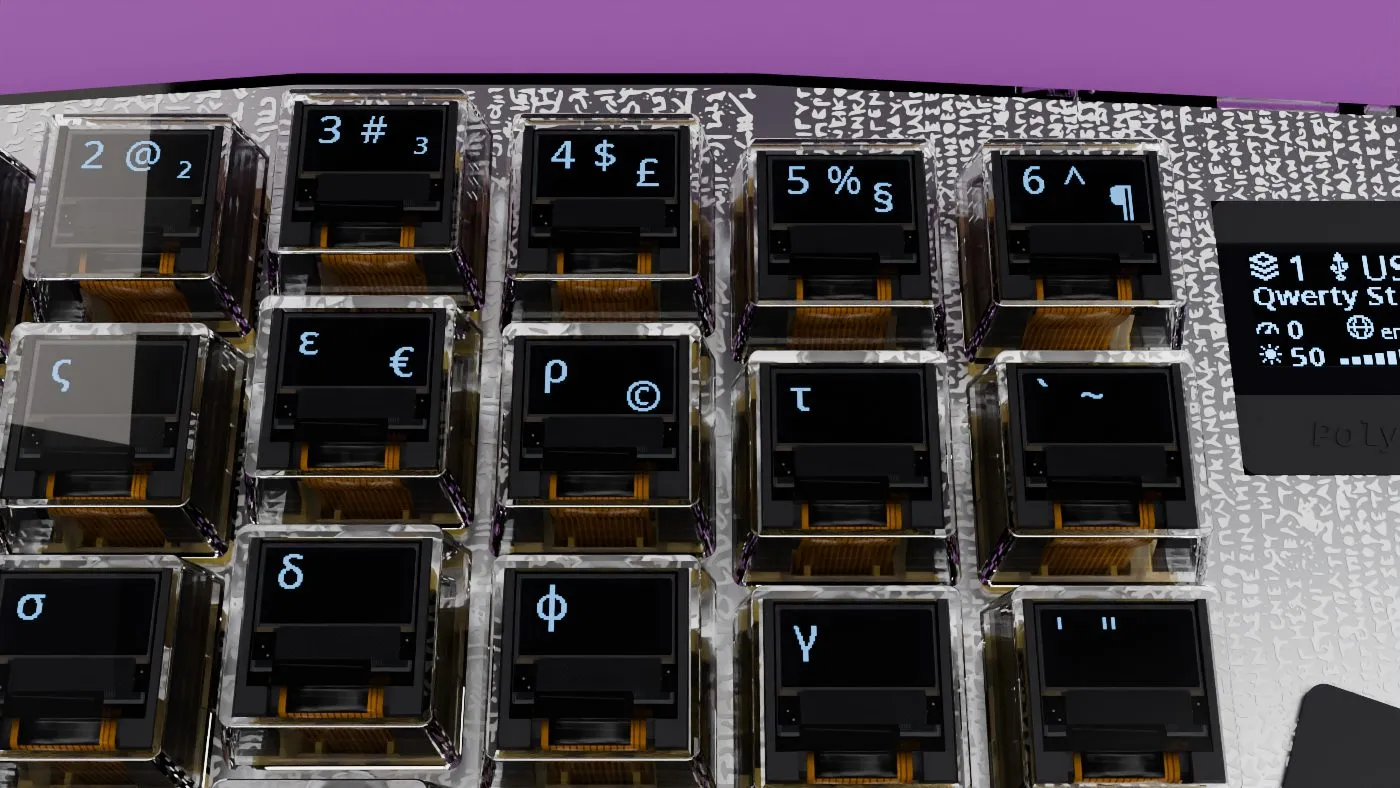
The left half on a Greek layout, a different script with no hardware change:
Pick a language and PolyKybd does two things at once:
- Switches the keycap legends so every key shows the characters for that layout.
- Tells the host OS to switch input language, so what you type matches what the keys show.
Your selection persists across reboots. Because the language list is shared by both hardware variants, split72 and split42 support the same set of languages.
What a keycap shows
Section titled “What a keycap shows”A single keycap shows up to three things at once, in fixed places:
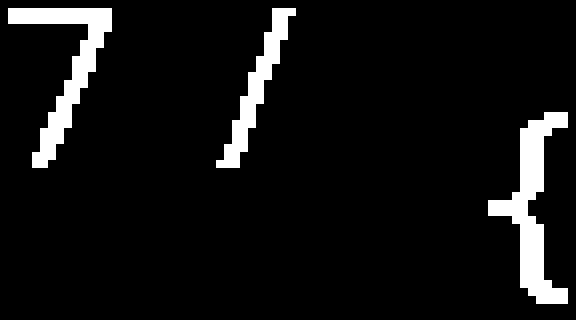
- The main legend, drawn largest and to the left — what the key types on its own. Just how large is adjustable; these examples use the default.
- The Shift preview, small in the upper right — what you get holding Shift.
- The AltGr hint, small in the lower right — what you get holding AltGr.
The two small ones are previews, so you can find a symbol without searching for it. They appear only when the key actually has something to show: on most layouts a plain letter has no Shift preview, because its capital form is obvious.
The Intl layer: accented letters on demand
Section titled “The Intl layer: accented letters on demand”Switching your whole layout is the right choice when you write in another language. When you only
need the occasional accented letter — a name, a loanword, a single ñ in an English sentence —
there is the Intl layer. Hold the Intl key [ İñțł ] and the letters that have accented
forms show one:
| Hold Intl, press… | You get |
|---|---|
a |
à (or whichever variation you picked for a) |
s |
ș |
e |
é |
Press the letter and PolyKybd types that character — no dead keys, no compose sequence, no layout
switch. Every letter of the alphabet has variations — 549 in all, covering every accented
form Unicode has a single character for. o has the most at 36, then a and u at 30 and e
at 25; even q and x have a couple.
Choosing which accent a letter types
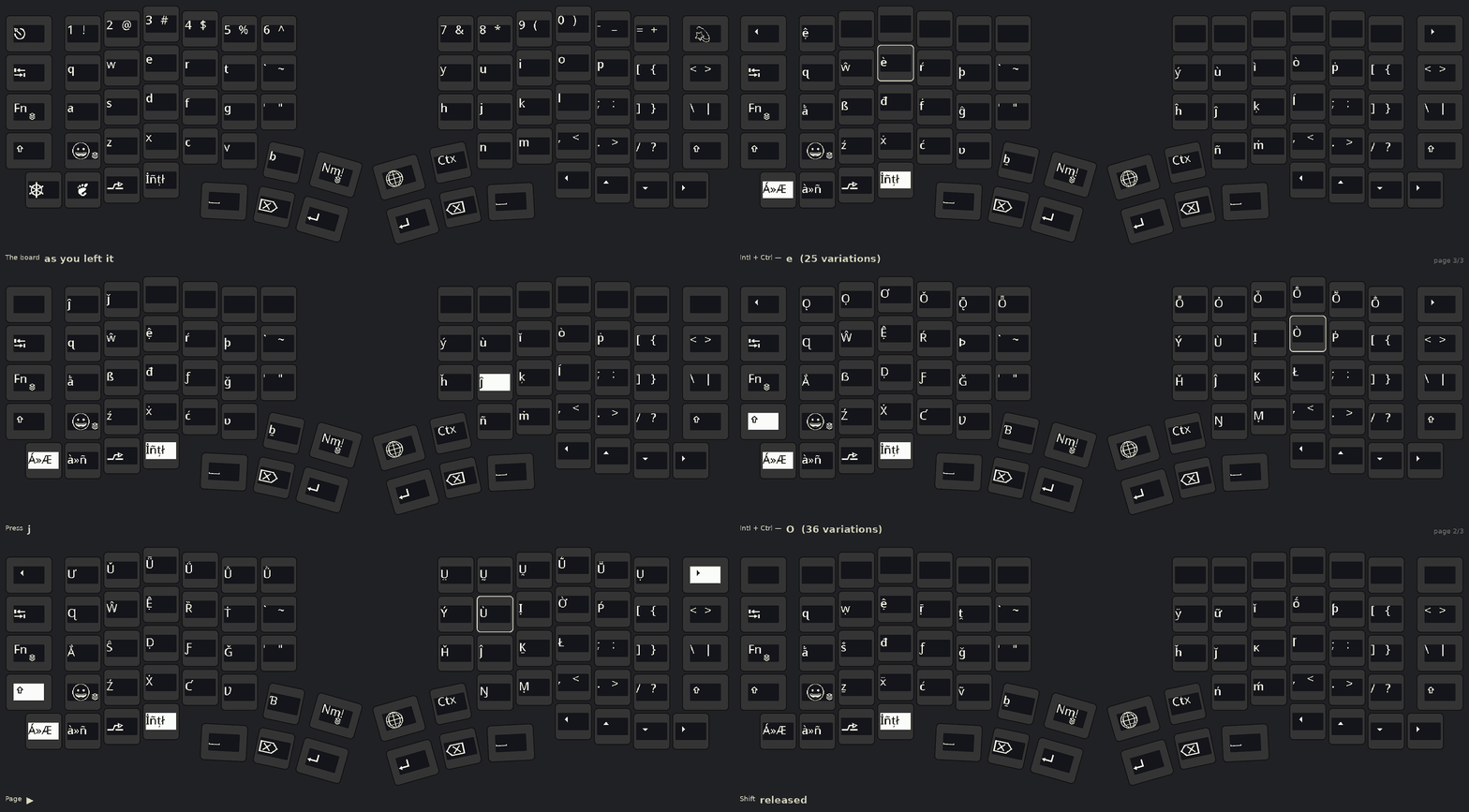
Section titled “Choosing which accent a letter types”Each letter remembers one variation at a time — the one on its keycap. To change it, use the picker on the number row.
- Hold Intl.
- Press the letter you want to change, so the keyboard knows which one you mean.
- Tap Ctrl [ Á»Æ ]. The Ctrl keycap turns inverted — dark legend on a lit key — to show the picker is active, and the number row fills with that letter’s variations.
- If the letter has more variations than fit in one row, step through them with the page arrows at either end of the picker row. The arrow keys show the current page and the page count, for example ▶ 2/3.
- Press the key under the accent you want.
That becomes the letter’s variation from then on, and it is kept after a reboot. The picker closes as soon as you pick, and reopens on the first page.
Giving one letter several keys
Section titled “Giving one letter several keys”The picker chooses another form of the letter a key already has, so it can only ever give you
one accent per key. French needs è é and ê at the same time — three forms of one letter, and
only one e key to put them on.
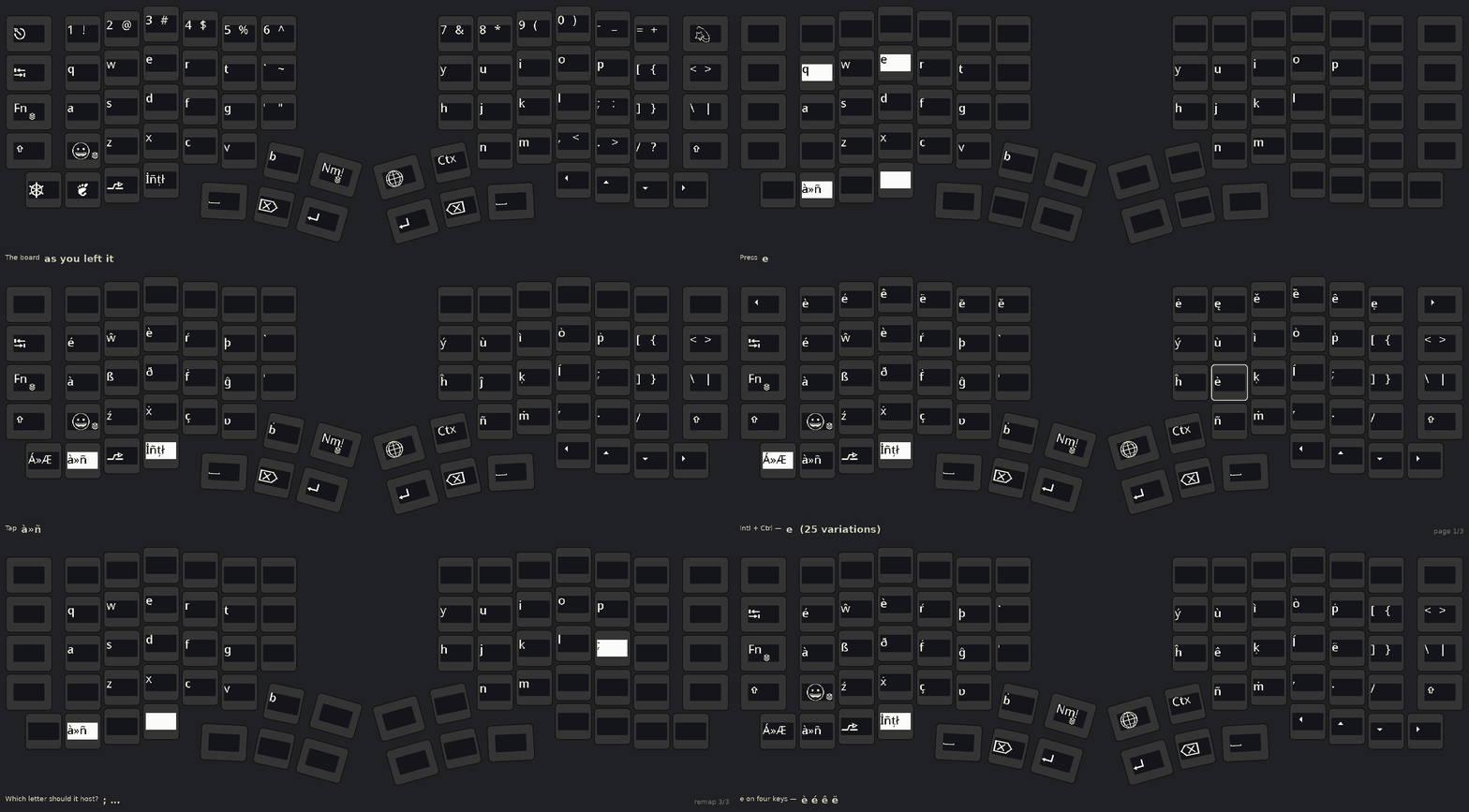
So a key can be reassigned to a different letter:
- Hold Intl.
- Tap the remap key [ à»ñ ], next to the picker’s Ctrl. It inverts, and every key goes blank except the keys you can choose from.
- Press the key you want to change. It inverts too.
- Press the letter it should type.
That key now has the chosen letter’s variations, and its own picker works exactly as before —
so you can give each of them a different accent. q and j are good candidates: they have one and
two variations of their own, so they are almost unused on this layer otherwise.
Punctuation keys can take a letter too — ` ' , . / ; [ ] = on split72, and
; , . / on split42. Which ones you get is decided by the layout: a key that isn’t on the
Intl layer is never available. An unmapped punctuation key keeps typing its own symbol, so
nothing changes until you deliberately remap it.
When a letter needs more than one row
Section titled “When a letter needs more than one row”The picker row holds 12 variations at a time on split72 and 10 on split42, so the letters with the most variations span several pages. The two page arrows are at the outer ends of the row — back on the far left of the left half, forward on the far right of the right half. They wrap in both directions, and each shows the current page and the page count next to its arrow (◀ 2/3).
| Letters that page | Most pages | |
|---|---|---|
| split72 (12 per row) | a e i o u |
3 (o) |
| split42 (10 per row) | a e i n o s t u y |
4 (o) |
Every other letter fits on a single row, and there the arrows stay blank — if you see no arrows, you are already looking at all of them.
The inverted Ctrl keycap is the thing to look for: if it’s lit, the number row is a picker and the digits won’t type numbers.
Romanian and the comma-below letters
Section titled “Romanian and the comma-below letters”Romanian’s ș and ț use a comma below the letter, not a cedilla — ș is a
different character from ş, and using the wrong one is a spelling error in Romanian. Both cases of
both letters are available as variations of s and t.
What the full set adds
Section titled “What the full set adds”The picker now contains every accented letter that Unicode encodes as a single character. These are the writing systems that gained the most from that — the middle column is what was missing before, not the whole of what each one uses:
| Language or system | Letters it gained |
|---|---|
| Welsh | ẁ ẃ ẅ ỳ — the grave, acute and diaeresis forms of w and y (the circumflex ŵ ŷ were already there) |
| Irish | the séimhiú dotted consonants ḃ ċ ḋ ḟ ġ ṁ ṗ ṡ ṫ |
| Guaraní | Ẽ and Ỹ, the capitals that had no partner for the existing lower-case forms |
| Vietnamese | the horned vowels ơ ư, including their tone combinations |
| Pinyin | 3rd-tone carons and the full ü set |
| African reference alphabet | the hook letters ɓ ɗ ƙ ƴ and relatives |
Japanese: ja-JP and ja-US
Section titled “Japanese: ja-JP and ja-US”Most Japanese typists use romaji input: they type k a and the IME turns it into か. So both
Japanese layouts show the Latin legend first, and each key’s kana small in the lower right, the way
a printed JIS keycap does.
The two layouts differ only in punctuation, because the OS turns a key into a character with its own keyboard layout setting. Pick the one that matches it:
- ja-JP is for the Japanese (JIS, 106/109-key) layout: Shift+2 is
",@sits next to P, and:is on the key right of;. The`key is 半角/全角 there, an IME toggle, and shows 英数 over かな. - ja-US is for the US (101-key) layout, with the US punctuation on the 14 keys where JIS differs. The letters, digits and kana are the same as on ja-JP.
Where the OS keeps that setting:
| OS | JIS → ja-JP | US → ja-US |
|---|---|---|
| Windows | Hardware keyboard layout “Japanese keyboard (106/109 key)” | “English keyboard (101/102 key)” |
| macOS | Keyboard type JIS | Keyboard type ANSI |
| Linux | Keyboard layout jp |
Keyboard layout us |
On Windows the setting is under Settings → Time & language → Language & region → Japanese → Language options → Hardware keyboard layout, and a change needs a restart. A Japanese edition of Windows starts on 106/109; Japanese added to an English Windows stays on 101. macOS asks for the keyboard type the first time it sees a keyboard it cannot identify. The keyboard cannot read any of these settings, so you must select the layout yourself.
In the language layer the two sit side by side under Asia, both with Japan’s flag.
The IME key: Korean, Japanese and US English
Section titled “The IME key: Korean, Japanese and US English”Korean and Japanese are typed through an input method (IME), and the IME has its own on/off mode. On the split72 keymap, the key that is Non-US Backslash on other layouts switches that mode for you. On the US-style English layouts, where Non-US Backslash only repeats the Backslash key, it becomes a second Alt key on the right-hand side. The keyboard chooses what to send from the active language and the OS:
| Language | Windows | Linux, Android | macOS |
|---|---|---|---|
| ko-KR | 한/영: switches between Hangul and Latin | 한/영 | Ctrl+Space: the previous input source, so Hangul ↔ Latin only while those are the last two you used |
| ja-JP | Caps Lock, which is 英数 on a JIS layout; Shift+Caps Lock is Caps Lock | Caps Lock, as on Windows | tap: 英数 ↔ かな; Shift+tap: katakana (Ctrl+Shift+K) |
| ja-US, tap | IME off ↔ hiragana (Shift+Caps Lock / Ctrl+Caps Lock) | 無変換 ↔ カタカナひらがな | 英数 ↔ かな |
| ja-US, Shift+tap | katakana (Alt+Caps Lock) | katakana (Shift+カタカナひらがな) | katakana (Ctrl+Shift+K) |
| en-US, en-CA, en-AU, en-NZ, en-IN, en-PH, en-SG | Right Alt | Right Alt | Right Option (⌥), for typing accented letters and symbols |
| any other language | Non-US Backslash, as before | Non-US Backslash, as before | Non-US Backslash, as before |
On ja-JP the key is a plain Caps Lock on Windows and Linux, because a JIS layout already has the
IME keys: Caps Lock is 英数 and the ` key is 半角/全角. macOS treats Caps Lock as Caps Lock
even on a JIS keyboard type, so there ja-JP keeps the 英数/かな key. On ja-US, Windows uses Microsoft
IME’s Caps Lock shortcuts, which need no IME setting and work on the 101-key layout.
The keycap shows the label a Korean or Japanese keyboard prints on the key: 한/영 on Korean, and 英数 over かな on Japanese, which changes to カナ while you hold Shift. Where the key is Caps Lock it shows the Caps Lock legend. On the US-style English layouts it shows the Alt legend, or ⌥ on macOS. On Windows that Right Alt is also the compose key of WinCompose. On macOS the key is Right Option, not a second Cmd, because Option is the macOS key that types characters (⌥E for an accent, ⌥2 for ™). These labels are built into the firmware, so they show even without a font pack. On every other language the key shows that layout’s Non-US Backslash legend.
On ja-US, and on ja-JP under macOS, the keyboard cannot detect the IME’s mode. If you change the mode another way (the mouse, Alt+` or a Caps Lock shortcut), the next press can select the mode you are already in. Press once more and the key matches the IME mode again.
Emoji layer
Section titled “Emoji layer”PolyKybd also has a dedicated emoji layer that turns the keycaps into a visual emoji picker — each key previews an emoji, grouped into categories along the top row, so you choose one by sight instead of memorising a codepoint. Your most recently used emoji are easy to reach.
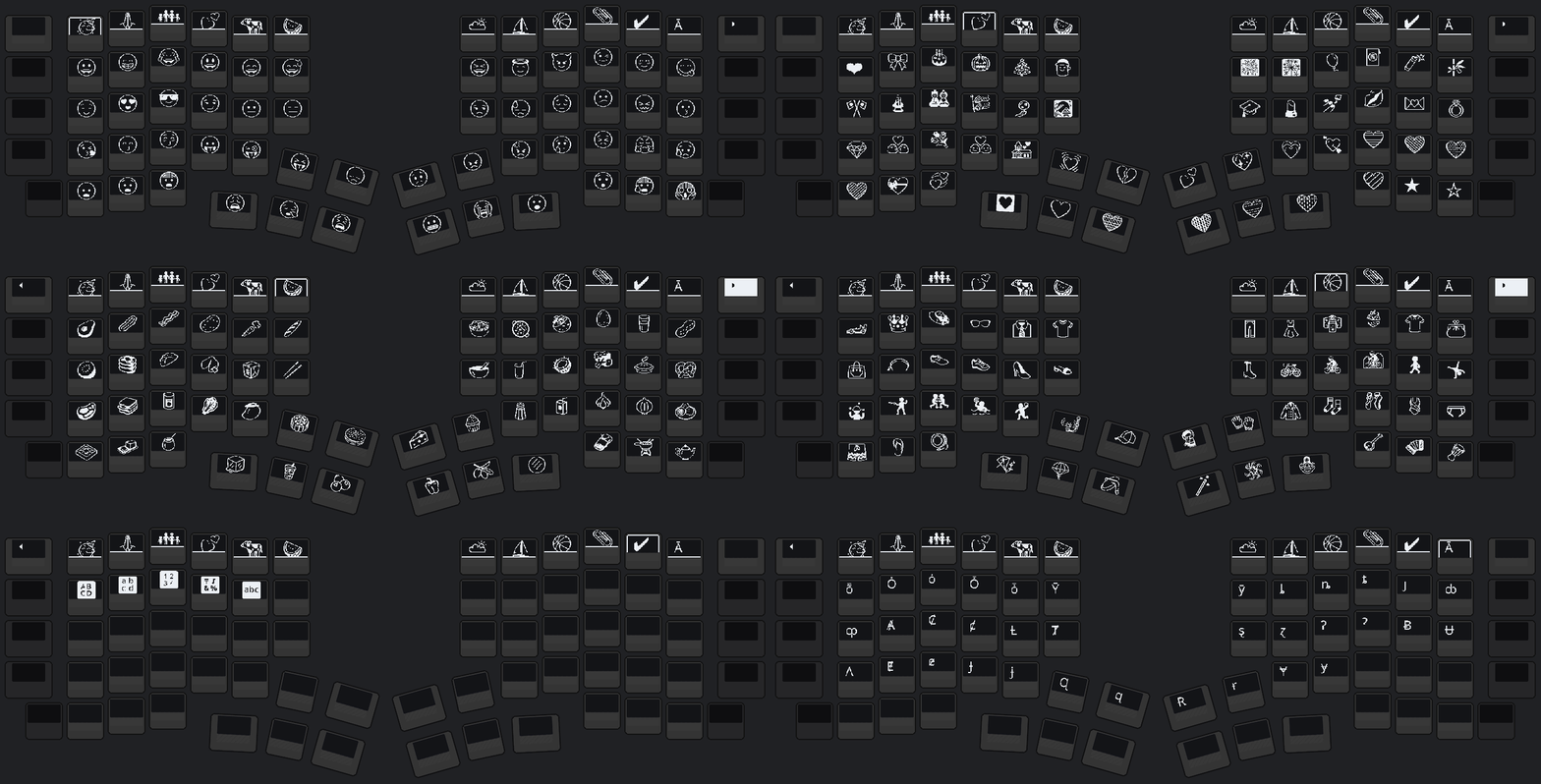
Close up, a single 72×40 px keycap rendering one emoji:
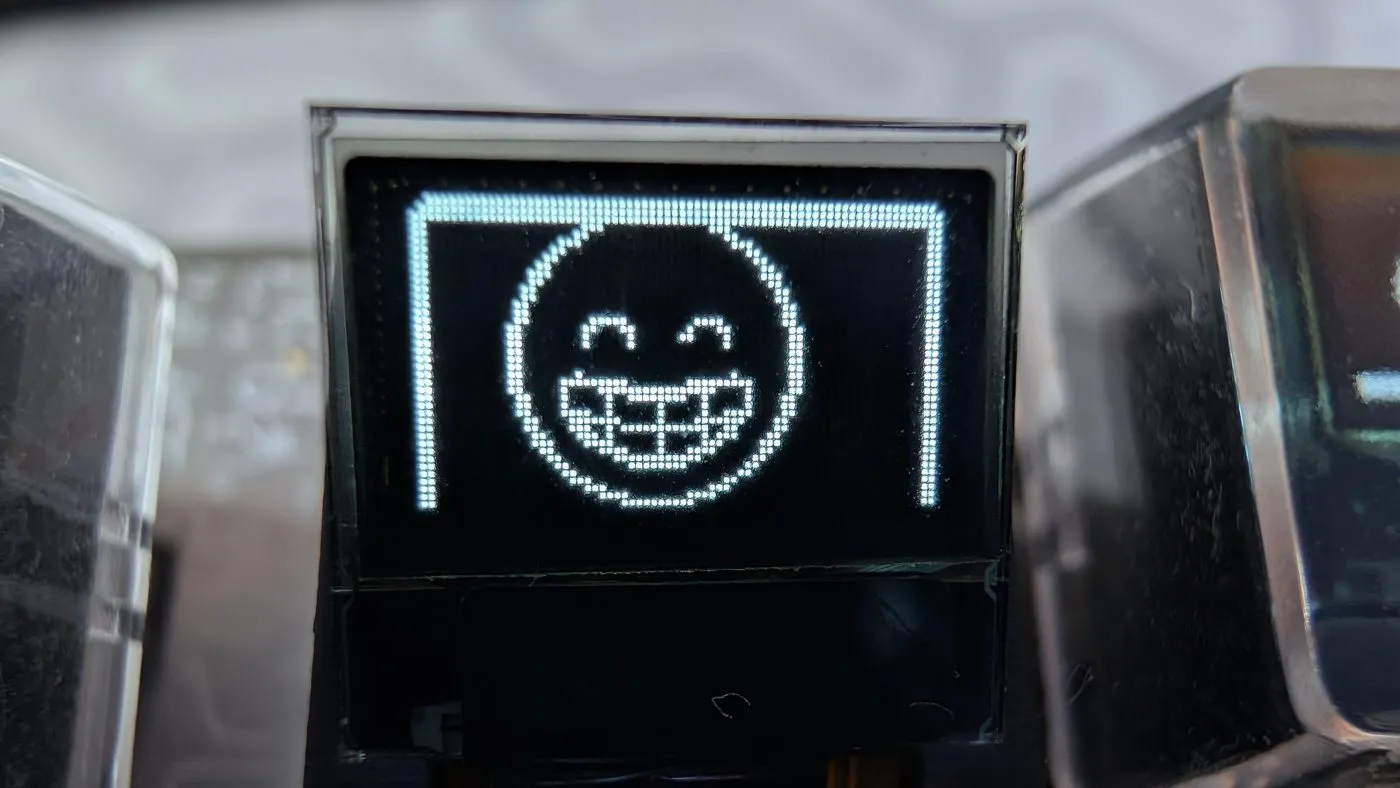
There are 12 category tabs, in this order on the keyboard:
- Smileys & Faces
- Gestures, Body & Love
- People & Jobs
- Animals
- Nature, Plants & Food
- Weather & Sky
- Travel & Places
- Sports & Entertainment
- Tools & Objects
- Marks & Icons
- Symbols & Math
- Latin Extended
On split72 they fill the top row, with a page key at each outer end. On split42 they fill the two top rows of the left half, and the page keys are on the thumb row. A category with more emoji than keys has several pages. The page keys show the current page and the page count next to the arrow, for example ▶ 3/9, and they wrap in both directions. A category with one page shows blank page keys.
Symbols
Section titled “Symbols”The Symbols & Math tab [ ± ] has the typographic and technical symbols that a layout does not put on a key. The tabs as described here need firmware 1.9.16 and PolyKybdHost 1.17.87. In this order:
| Group | Symbols |
|---|---|
| Superscripts (first on the tab) | ⁰ ¹ ² ³ ⁴ ⁵ ⁶ ⁷ ⁸ ⁹ ⁺ ⁻ ⁼ ⁽ ⁾ ⁿ ⁱ |
| Subscripts | ₀ ₁ ₂ ₃ ₄ ₅ ₆ ₇ ₈ ₉ ₊ ₋ ₌ ₍ ₎ |
| Most used | ° ± × ÷ µ © ® ™ § ¶ · • – … « » ‰ |
| Currency | € £ ¥ ¢ ₹ ₽ ₩ ₺ ₿ ₪ ₫ ₱ ₼ ₴ ₦ ₡ ₲ ₵ ₸ ₾ ₮ ₭ ⃀ ₨ $ ֏ ৳ ௹ ฿, then the historical ₣ ₤ ₧ ₠ ₯ ₰ ₳ ₢ ₥ ₶ ₷ ₻ and the generic ¤ |
| More punctuation | ‹ › „ “ ” ‘ ’ ¡ ¿ † ‡ |
| Fractions | ½ ⅓ ⅔ ¼ ¾ ⅕ ⅖ ⅗ ⅘ ⅙ ⅚ ⅐ ⅛ ⅜ ⅝ ⅞ ⅑ ⅒ ↉ ⅟ ⁄ |
| Other letters and signs | ′ ″ ‚ ª º ¬ ¦ ℃ ℉ ℓ № ℗ ℠ ℮ |
| Greek | α β γ δ ε θ λ μ π σ τ φ ω Δ Σ Φ Ω |
| Math | − ∓ ≈ ≠ ≡ ≤ ≥ ≪ ≫ ∞ √ ∛ ∝ ∑ ∏ ∫ ∂ ∆ ∇ ∀ ∃ ∅ ∈ ∉ ∩ ∪ ⊂ ⊃ ⊆ ⊇ ∧ ∨ ⊕ ⊗ ⊥ ∠ ∴ ∵ ∘ ∙ ⋅ ∕ ⌀ |
| Arrows | ← ↑ → ↓ ↖ ↗ ↘ ↙ ↔ ↕, ⇐ ⇑ ⇒ ⇓ ⇖ ⇗ ⇘ ⇙ ⇔ ⇕, ⟵ ⟶ ⟷ ⟸ ⟹ ⟺, ⟻ ⟼ ⟽ ⟾ ↤ ↦ ↥ ↧, ↩ ↪ ↞ ↠ ↟ ↡ ↢ ↣ |
| More arrows | ↚ ↛ ↮ ⇍ ⇏ ⇎, ⇄ ⇆ ⇋ ⇌ ↼ ↽ ⇀ ⇁ ↾ ↿ ⇂ ⇃, ⇇ ⇉ ⇈ ⇊ ⇶ ⇚ ⇛, ↜ ↝ ⇜ ⇝ ↭ ⟿, ⇷ ⇸ ⇹ ⇺ ⇻ ⇼ ⇽ ⇾ ⇿, ↯ ↺ ↻ ⟰ ⟱ ⟴ ⇴ |
For a fraction that has no character of its own, type a superscript, the fraction slash ⁄ and a subscript: ³⁄₇.
A superscript or subscript key shows a full-size x in front of the character (x², x₂), so you can tell the two apart. Pressing the key types only the character.
The Marks & Icons tab [ ✔ ] next to it has check marks, crosses, ballot boxes, bracket ornaments, dingbat arrows and, at the end, the keyboard arrows: ↵ ↰ ↱ ↲ ↳ ↴ (enter), ⇤ ⇥ ↹ (tab), ⇧ ⇪ ⇫ ⇬ ⇭ ⇮ ⇯ ⇰ ⇳ ⇦ ⇨ ⇩ (shift and caps lock), ⇞ ⇟ ⇱ ⇲ ↸ (page up, page down, home, end), ↶ ↷ ⟲ ⟳ (undo, redo), ⇅ ⇵ ↨, ⇠ ⇡ ⇢ ⇣ and ↫ ↬. After them come arrows in every direction, in many styles: thin, heavy, wide-headed, triangle-headed and outlined (⬅ ⬆ ⬇ ⬈ ⬉ ⬊ ⬋ 🡐 🡑 🡒 🡓 🡔 🡕 🡖 🡗 and more), paired, circled, corner and ribbon arrows. They are in the font pack.
The math symbols, the arrows and the currency signs ֏ ৳ ௹ ฿ are in the font pack,
like the emoji. Without a font pack, a key whose symbol or emoji is in the pack shows Glyph
missing! instead. Pressing it still types the character. With Settings → Fontpack → Auto Flash
on (the default), PolyKybdHost flashes missing or outdated bundles when the keyboard connects. With it
off, use Updates → Keyboard fonts or polyctl fontpack sync. The rest is built into the firmware.
The keyboard types each symbol as Unicode, so the Unicode input mode must be
set for your OS.
Unicode input
Section titled “Unicode input”PolyKybd also supports Unicode input for emoji, accented characters (Æ, Ç, È, …), and any other Unicode codepoint. Because each OS handles Unicode input differently, you must first tell the keyboard which mode to use.
Selecting your OS input mode
Section titled “Selecting your OS input mode”Press the Language/Globe key [ 🌐 ] to reach the OS selection. Choose the entry matching your operating system and preferred input method:
| Key label | Use on |
|---|---|
| Mac | macOS — requires setup below |
| Lnx | Linux with IBus and compatible apps/window managers |
| BSD | BSD (currently unimplemented in QMK) |
| Emcs | Emacs (untested) |
| Win | Windows, unicode up to U+FFFF (no emoji) — requires registry edit below |
| WinC | Windows with WinCompose installed — full unicode including emoji |
Your selection is saved to the keyboard and persists across reboots.
Per-OS setup
Section titled “Per-OS setup”Follow the QMK macOS unicode setup guide:
- Open System Settings → Keyboard → Text Input → Input Sources
- Add the Unicode Hex Input input source
- Select it when you want to type unicode characters
Then press Mac on the PolyKybd language selector.
IBus must be installed and running as your input method framework. Most major desktop environments (GNOME, KDE) support this.
Press Lnx on the PolyKybd language selector.
Windows supports unicode input up to code point U+FFFF (this excludes emoji). First enable hex numpad input:
reg add "HKCU\Control Panel\Input Method" -v EnableHexNumpad -t REG_SZ -d 1Log out and back in (or reboot) after running this.
Then press Win on the PolyKybd language selector.
WinCompose adds a compose key mechanism to Windows with full unicode support including emoji.
- Download and install WinCompose — we maintain a fork of Sam Hocevar’s original, since it is no longer actively developed
- Launch it — it runs in the system tray
- Press WinC on the PolyKybd language selector
Typing unicode characters
Section titled “Typing unicode characters”Once your OS mode is set, press any key that has a unicode character assigned in the keymap (such as an emoji or accented character). The keyboard sends the appropriate input sequence for your OS automatically.
Unicode character assignments are configured in the QMK keymap source. See Keymaps & Layers for how to modify them.