

Keymaps & Layers
What are layers?
Section titled “What are layers?”Layers work like the Shift key but for your entire layout. You can define multiple complete keymaps and switch between them with a dedicated key. PolyKybd’s per-key displays make layers instantly visible — every key shows its current function on the active layer.
PolyKybd uses QMK’s dynamic keymap with 8 host-remappable layers, so remaps can be written to the keyboard at runtime without recompiling. Remapping is done with the keymap editor built into PolyKybdHost — see Keymap Editor.
Reading a layer key
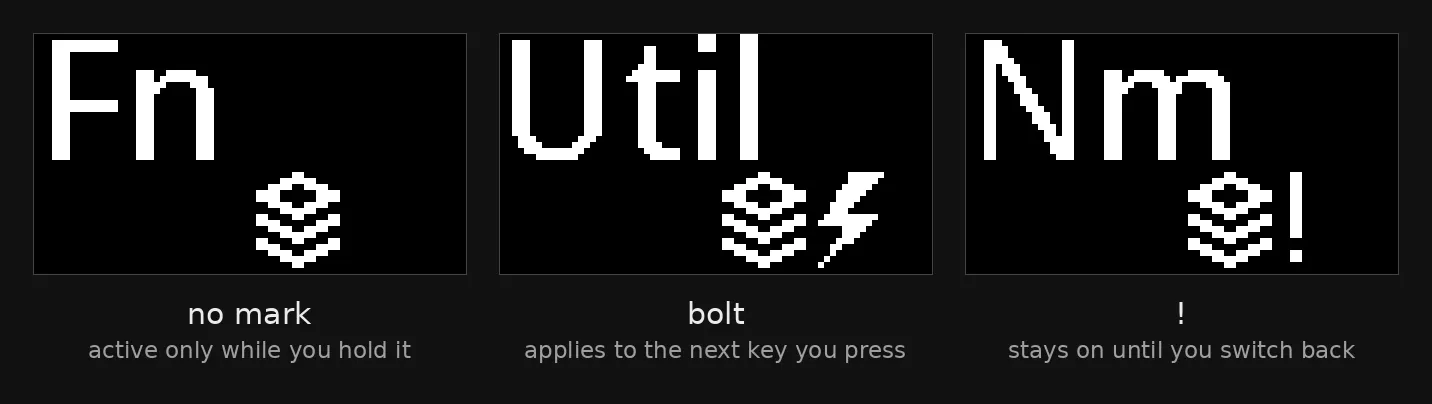
Section titled “Reading a layer key”A layer key now says what pressing it will do. Every one draws the layer icon, and a mark beside it tells you how long the layer stays:
| Mark | The layer is | Example |
|---|---|---|
| (none) | active only while you hold the key | Fn, and the momentary Nm and Util |
| bolt | one-shot — it applies to the next key you press, then turns off | Util on the default keymap |
! |
a switch — it stays on until you switch back | Base, and the Nm / Util keys bound to switch |
The utility and settings layers
Section titled “The utility and settings layers”Two layers hold the keyboard’s own controls, and one rule decides which layer a control is on: how often you use it.
Utility holds what you use while working — media and volume, the display brightness presets, legend size, mute, scroll lock. Nothing here changes how the keyboard is set up; it all changes what it is doing right now.
Settings is set-once or destructive — setting the OS by hand, picking a base layout, RGB, and the keys that reboot the board. The part you use most is visible as soon as you open the layer: the OS keys and the five layout keys.
The operating system
Section titled “The operating system”The keyboard needs to know which operating system it is typing into, mostly for the GUI key (Win, Cmd or Super):
- Its icon follows the OS: the Windows logo, the Linux penguin, the GNOME foot, the KDE logo or the Android head. With no OS known it shows ❖.
- On macOS the GUI and Alt keys swap, so the modifier row reads Ctrl, Option, Command as on a Mac keyboard. The keycaps show ⌥ and ⌘, and each key sends what its keycap shows.
- The same OS picks the shortcut hints and what the IME key sends.
PolyKybdHost reports the OS automatically. On the split72 you can set one by hand instead: the settings layer’s second row has Auto, Windows, macOS, Linux and Android, and the active key shows a lit switch. An OS set by hand stays until you press Auto, whatever the host reports.
The rest of the settings layer is blank and does nothing until you tap More… — the
idle style and how long before it starts,
the glyph script, the modifier and command legend modes, debug logging,
whether the key that wakes the board also types,
the Eden replay (the intro, then the tutorial), demo mode and the key demo, and Restart and Boot. Tap it once and those keys
appear: on split72 as one row, on split42 each at its own place in the layer. Leave the layer
and they are hidden again.
This keeps Restart and Boot from being pressed by accident.
Board info on the status display
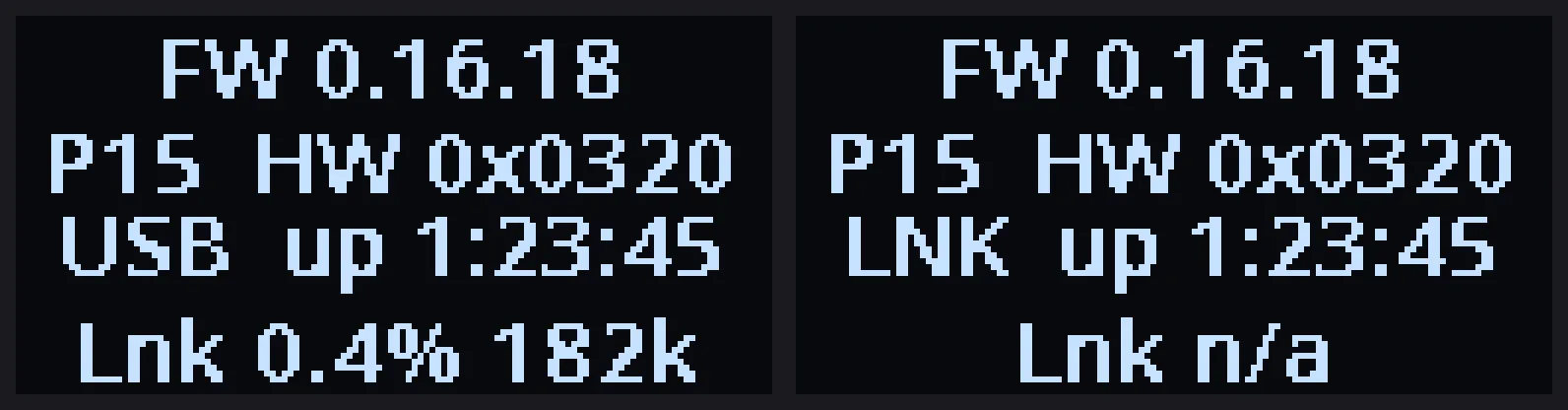
Section titled “Board info on the status display”While More… is showing, the status display changes from the usual layout/brightness panel to
board information: the numbers you would otherwise have to ask the host for, or find in a
log.
| Line | Means |
|---|---|
FW 0.16.18 |
The firmware version running on this half. |
P15 HW 0x0320 |
The HID protocol version the firmware uses, and the hardware revision. |
USB up 1:23:45 |
Whether this half is the one plugged into the computer (USB) or the one on the other end of the cable (LNK), and how long it has been powered. After four days it switches to 3d 7h. |
Lnk 0.4% 182k |
Split-link health — see below. |
Leave the settings layer and the display goes back to normal.
Reading the link line
Section titled “Reading the link line”The two halves communicate over the cable, and the Lnk line is the only place that
communication is visible: the percentage is the share of messages that had to be retried or went
unanswered, and the number beside it is how many have been sent.
It counts from power-on, and a handful of errors while the two halves connect at startup is normal — so on a healthy board the percentage falls the longer you leave it running, as those first few become a smaller share of all messages. What matters is the trend: a percentage that rises, or stays high on a board that has run for hours, indicates a problem with the cable or its connectors.
Two readings are not percentages at all:
Lnk n/aon the half that is not plugged into the computer. Only the USB half starts these exchanges, so the other one has nothing to report — and showing it as0.0%would look like a perfect link rather than no measurement.Lnk idlebefore anything has been sent yet.
Keys that show their current setting
Section titled “Keys that show their current setting”Several of these keycaps show what they are set to rather than what they do, so the layer can
be read at a glance instead of pressed to find out: the idle-style and glyph-script keys show a
label over the current value (IDLE: / Eden), the layout picks show their name over a lit or
unlit switch, and the modifier/command legend keys read Mods / Icon or Cmds / Text
depending on which rendering is active.
The idle timeout key is next to the idle-style one. It shows a small clock face over the
current value, such as 2min, and each tap steps to the next preset.
The function layer
Section titled “The function layer”Hold Fn and the number row becomes F1–F12. There is one function layer shared by
every base layout, and the F-keys are aligned with whichever layout you are
using: F5 is on the key that types 5, wherever that key is.
That matters because the layouts differ in where the number row splits between the
halves. Most have 1–5 on the left and 6–0 on the right; one has 1–6 on the
left. The keyboard reads the active layout’s own number row and places the F-keys to match,
rather than guessing.
Editing the function layer switches the alignment off
Section titled “Editing the function layer switches the alignment off”The function layer is remappable like any other, so you can change it in the keymap editor. But the editor shows what is stored, and the alignment happens on the keyboard as it draws — so the two would differ if both were active at once.
They can’t be. The moment you change any key on the Fn number row, the alignment stops for that whole row and the keyboard uses exactly what you stored. Editor and keyboard show the same keys again, which is what you want while you are editing. Reset the keymap and the alignment is active again.
Home row mods on Workman
Section titled “Home row mods on Workman”Pick the Workman base layout and its home row keys also act as modifiers: tap a key for the letter, hold it for the modifier.
| Left hand | Right hand | |
|---|---|---|
| GUI (Win/Cmd) | a |
i |
| Alt | s |
o |
| Ctrl | h |
e |
| Shift | t |
n |
The order is the Miryoku GACS arrangement — outside in, mirrored across the two halves — so the two strongest fingers press Ctrl and Shift.
The keycaps show this. A key that has a held modifier draws a small badge in its corner, so you can see which finger holds what instead of memorising the table above.
The keyboard uses a 200 ms tapping term with QMK’s chordal hold and Flow Tap, so fast overlapping key presses do not trigger a modifier.
Where the keymap code is
Section titled “Where the keymap code is”The shared keymap logic (rendering, HID handling, language selection, and the QMK callbacks) is in:
keyboards/polykybd/poly_keymap.cEach variant’s default keymap data — the keymaps[] array and encoder_map[] — is in its own
variant directory:
keyboards/polykybd/split72/keymaps/default/keymap.ckeyboards/polykybd/split42/keymaps/default/keymap.cBoth are in the PolyKybd firmware repo. See Keyboard Variants for why the logic is shared.
Customizing with PolyKybdHost
Section titled “Customizing with PolyKybdHost”The easiest way to remap keys is through the PolyKybdHost keymap editor, which writes changes directly to the keyboard’s dynamic keymap without needing to recompile firmware:
- Open PolyKybdHost (system tray icon → Configure Keymap)
- Click any key to select it
- Choose the new keycode from the browser
- The change is written immediately to the keyboard
This is also where you assign dual-function keys — a key that types a letter on a tap and acts as a modifier (or switches layer) when held. The keycap keeps its letter and shows the held modifier as a small corner mark. See Keymap Editor for details.
Customizing in QMK source
Section titled “Customizing in QMK source”For deeper changes (new layers, macros, tap-dance), edit the variant’s keymap.c directly. The
keymaps[] array is data only:
const uint16_t PROGMEM keymaps[][MATRIX_ROWS][MATRIX_COLS] = { [0] = LAYOUT( KC_ESC, KC_1, KC_2, /* ... */ ), [1] = LAYOUT( /* function layer */ ),};Then rebuild and flash the firmware (target polykybd/split72 or /split42).
QMK’s full keycode reference is at docs.qmk.fm/keycodes. Everything documented there works on PolyKybd.
Layer indicator on the status display
Section titled “Layer indicator on the status display”The status OLED shows the current active layer, along with other status information like the unicode input mode and host OS selection.