

Using the Tray App
Once PolyKybdHost is running, it lives in your system tray (Windows) or menu bar (macOS). A small PolyKybd icon indicates it is active and connected. The tray app is a client of the background daemon that owns the keyboard — see Daemon & Client Model.
System tray menu
Section titled “System tray menu”Right-click the tray icon. The menu is deliberately short — everything you need for normal use, and nothing else:
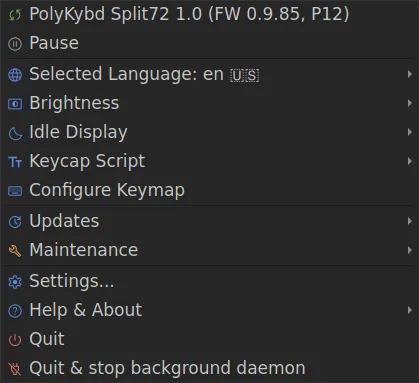
| Entry | What it does |
|---|---|
| Status line | The connected keyboard and its firmware. Clicking it is a shortcut for Pause below. |
| Pause | Stop talking to the keyboard — it keeps typing, the overlays just stop updating. Reads Resume while paused. |
| Language | Pick the keyboard’s layout language, grouped by region. |
| Brightness | Keycap brightness presets, plus Back to automatic — see Display Brightness. |
| Idle Display | What the keycaps do while you’re away, and — under Idle After — how long they wait first. See Idle & Burn-in Protection. |
| Keycap Script | Theme the letter legends — see Glyph Scripts. |
| Configure Keymap | Remap keys without reflashing — see Keymap Editor. |
| Updates | Host app, keyboard firmware, keyboard fonts, and WinCompose (Windows). |
| Maintenance | Fix left/right sides, reset overlays or the keymap, flash a firmware file, enter the bootloader. |
| Settings | Brightness, unicode mode, daemon mode and the rest. |
| Help & About | About, the log viewer, Open config folder, and — when something goes wrong — Report a Problem… and Collect logs… (see Reporting a Problem). |
| Quit | Close the tray app. The daemon keeps running, so the keyboard stays live. |
Two entries only appear when they apply: Install WinCompose… while WinCompose is not running, and a Firmware newer than this app warning if the keyboard is running firmware this version of PolyKybdHost doesn’t fully know yet (click it to choose how to handle that).
Developer mode
Section titled “Developer mode”Diagnostic and power-user tools — overlay resets, font-pack inspection, staged
firmware, keymap dumps — live in a separate Developer submenu that is hidden by
default. Turn it on in Settings → Developer → Mode (then restart the app), or start
with --dev for one session.
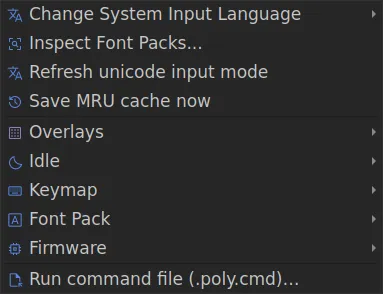
Switching it on only adds the Developer submenu; nothing else in the menu moves, so you can leave it on without relearning where things are.
What the app drives
Section titled “What the app drives”The tray app is the front-end for the keyboard’s live features — each has its own page under Using the Keyboard:
- Context-Aware Overlays — the keycaps follow your active window automatically.
- Display Brightness — presets in the Brightness submenu, adaptive daylight (Settings → Brightness), or the optional light sensor.
- Languages & Unicode Input — the OS unicode mode selected on the keyboard is synced here, and settable from the Settings dialog.
- Glyph Scripts — theme the legends from the Keycap Script submenu.
The app also sends an anonymous once-a-day usage report, which you are told about on first run and can switch off under Settings → Telemetry — see Usage Data & Privacy for exactly what it contains.
Firmware updates
Section titled “Firmware updates”You can flash new firmware directly from the tray: Updates → Check for keyboard firmware
update… fetches the latest release for you, and Maintenance → Flash firmware file
(.bin)… takes a .bin you already have. Flashing works over HID and is available even when the keyboard is on a protocol version the rest of PolyKybdHost doesn’t fully support, so a mismatched keyboard can always be updated. The same operation is available from the command line with polyctl fw flash — see Command Line and Flashing Firmware.
Installing WinCompose (Windows)
Section titled “Installing WinCompose (Windows)”WinCompose is what lets the keyboard type arbitrary unicode on Windows — emoji, accents and the language layers all go through it. When it is not running, the tray menu offers Install WinCompose…: it downloads PolyKybd’s build from GitHub and starts the installer (Windows asks you to confirm the elevation).
The entry appears only on Windows, and only while WinCompose is not running — it
disappears by itself once WinCompose is up. At that point the keyboard is switched to
compose mode straight away; the unicode input mode is otherwise only sent when the
keyboard connects, so no replug is needed. polyctl unicode-mode does the same
re-detection from the command line.
Debug logging
Section titled “Debug logging”If something is not working as expected:
python -m polyhost --dev # developer mode + basic loggingpython -m polyhost --dev 2 # developer mode + verbose HID traffic loggingpython -m polyhost --dev 0 # force developer mode off for this run--dev turns on developer mode and raises the log level. If you only want the
developer tools without the extra logging, enable Settings → Developer → Mode
instead and start the app normally.
The Log Viewer (tray menu → Help & About → Log file…) shows the same output in a GUI window. When running with the daemon, its activity appears under the Daemon Log tab.
To send those logs to someone — or to file a bug with them attached — use Help & About
→ Report a Problem… or Collect logs… rather than hunting for the files. Both are
described in Reporting a Problem, along with the
polyctl logs equivalents that work even when the app will not start.