

Keymap Editor
The Layout Editor in PolyKybdHost lets you remap any key on any layer directly, without recompiling or reflashing firmware. Changes take effect immediately and are stored in the keyboard’s flash memory.
Opening the editor
Section titled “Opening the editor”Right-click the PolyKybdHost tray icon → Configure Keymap.
The board you are editing
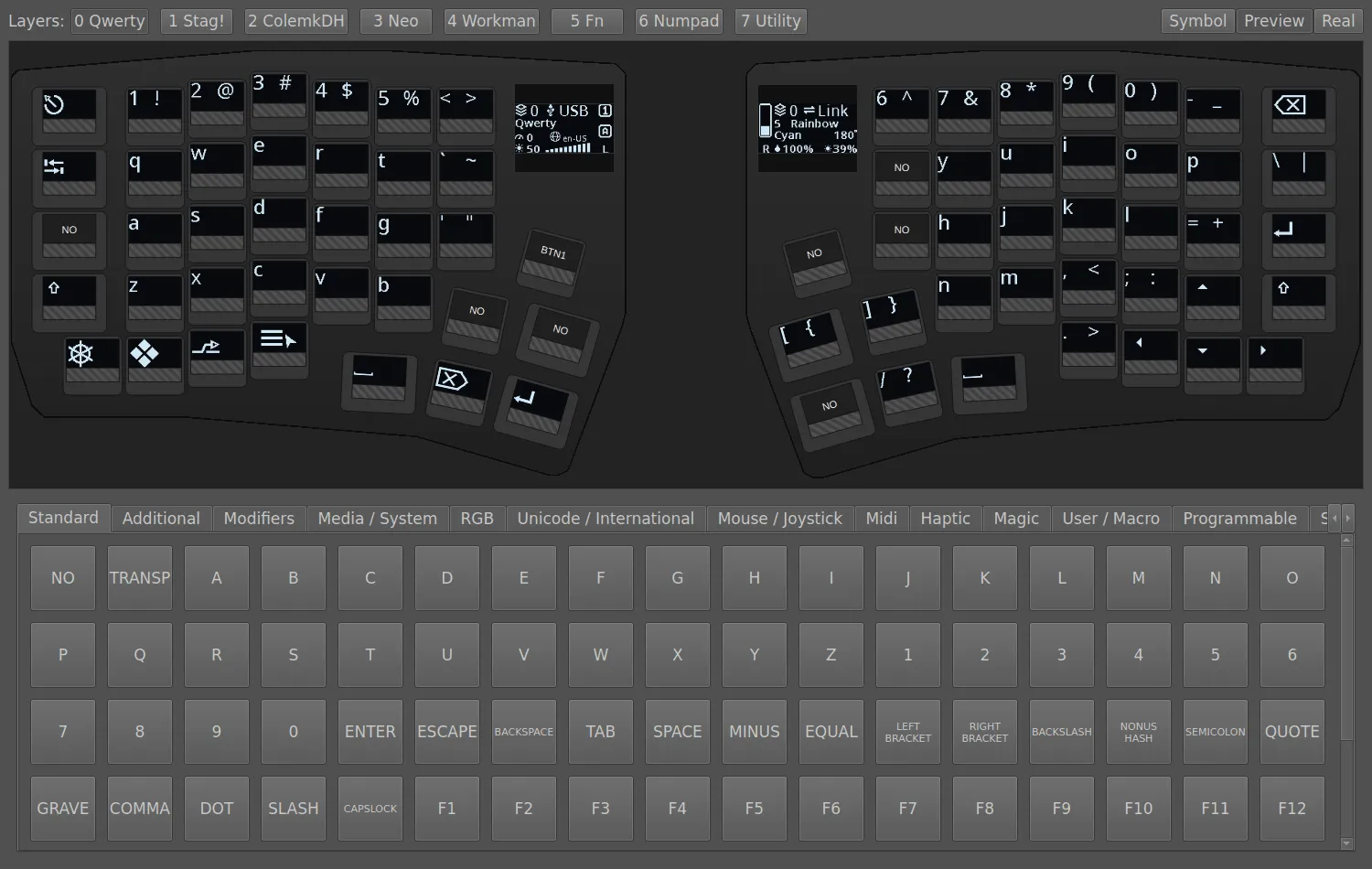
Section titled “The board you are editing”The editor draws the keyboard, not just a grid of keys: each half sits on its own
case plate in the same shape and stagger as the hardware, so a key is where your
finger expects it. The two 0.96” status panels are drawn too, and they
follow the tabs: pick Fn and both panels read layer 5, Fn. On the keyboard that
line names the active base layout; in the editor it names the layer you are editing,
which is the more useful of the two while you are remapping.
Using the editor
Section titled “Using the editor”-
Select a layer using the layer tabs at the top of the editor window. All key labels update to reflect the selected layer.
The tab labels come from the keyboard:
Firmware protocol v14+layer names reported by the keyboardQwerty,ColemkDH,Fn,Numpadand so on. Older firmware does not report them, so the editor shows shorter built-in names instead. -
Click a key to select it. The key is highlighted.
-
Choose a new keycode from the keycode browser panel.
-
The change is written immediately to the keyboard over HID. The key label updates on both the editor and the physical key display.
Seeing the keycaps instead of keycodes
Section titled “Seeing the keycaps instead of keycodes”Three buttons in the top-right corner of the editor decide what a key shows — Symbol, Preview and Real:
- Symbol is the default: every key shows its keycode —
Q,NUBS,GRV. Precise, but it does not look like your keyboard. - Preview draws each key the way the keyboard itself draws it: the same fonts, the same layout, the same legends — letters in the language you have selected, the modifier and arrow symbols, the PolyKybd setting keys, and your macros with their labels.
- Real puts that same picture through a simulation of the OLED: the cool white the panels actually emit, on true black, with the slight glow around lit pixels.
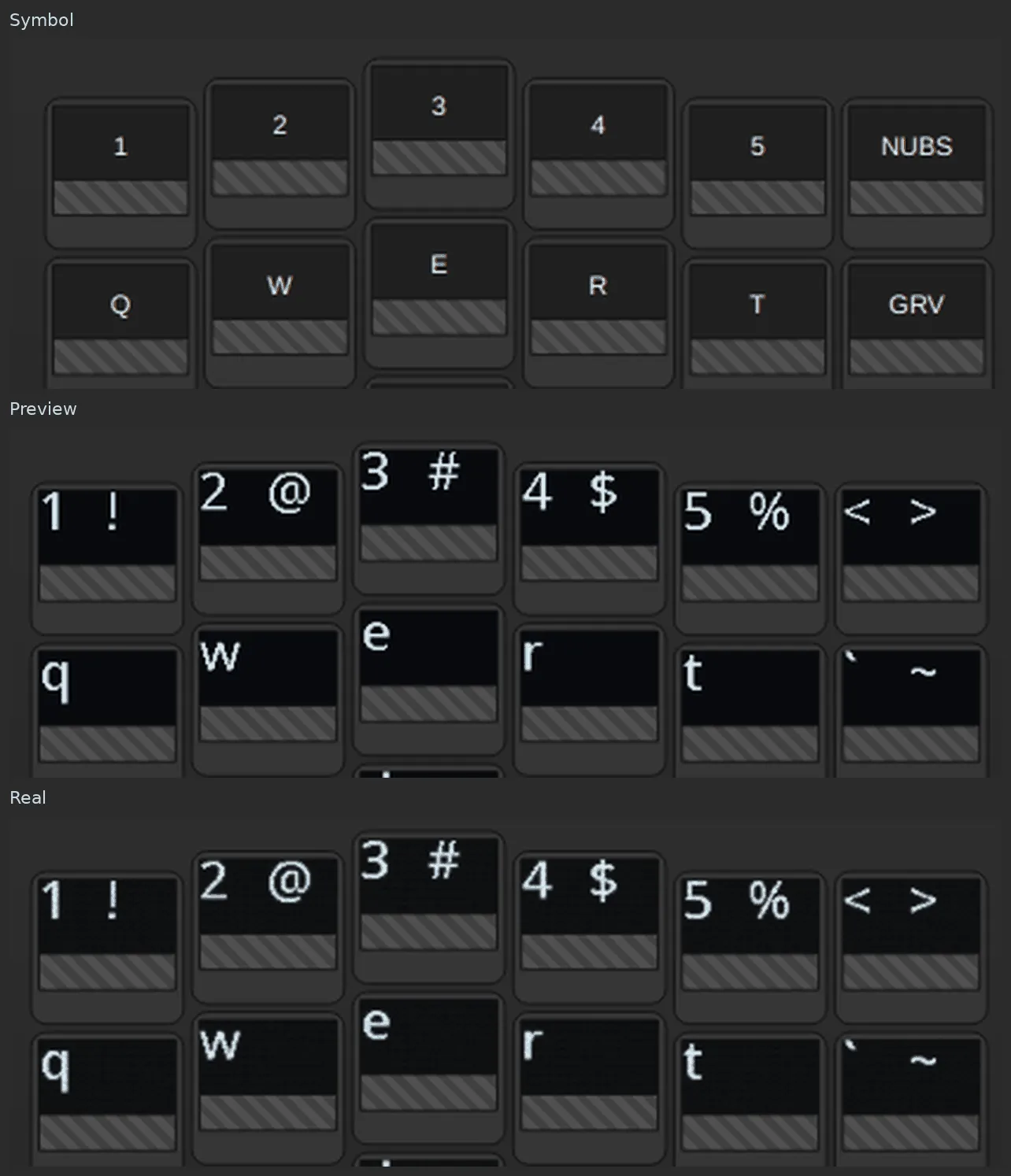
Preview makes a layer far easier to read at a glance, and it shows you what a remap will actually look like on the key before you apply it. Real shows one more detail: how legible a legend will be on the hardware. The difference only shows up close, as above; across the whole board the two look much the same.
Host 0.18.0+Symbol / Preview / Real; previews alone since 0.14.11If a button is greyed out, hover it — the tooltip says what could not be loaded. It also names where the legends were read from, which helps if a preview ever differs from the physical key.
Dual-function keys (tap one thing, hold another)
Section titled “Dual-function keys (tap one thing, hold another)”The keycode browser has a behaviour section for keys that do two different things depending on how long you press them — a mod-tap (MT) taps a normal key but acts as a modifier when held, and a layer-tap (LT) taps a key but switches layer when held. Pick the behaviour from the dropdown, tick the modifiers (or choose the layer), pick which key it taps, and choose whether the modifier is the left or the right one.
A common use is turning a home-row key into a modifier, so you do not need to move your hand to press it: MT + Shift + A gives you a on a tap and Shift on a hold.
What the keycap shows
Section titled “What the keycap shows”The key still shows its tap letter as the normal legend — that’s what you get when you press it, so it stays the main thing on the display. The modifier is only what holding does, so it appears as a small mark in the bottom-right corner, using the same symbols the dedicated modifier keycaps use:

The GUI mark follows whichever operating system the keyboard has detected, exactly as the real GUI keycap does:

If you assign more than one modifier, the marks fill a small grid that grows up and to the left from that corner, so a single modifier always sits in the corner and the letter always has room:

How it works
Section titled “How it works”PolyKybdHost uses the QMK ID_DYNAMIC_KEYMAP_SET_KEYCODE protocol to write individual key assignments directly to the keyboard. It does not write a full layer — only the changed key is updated, making it instant.
The dynamic keymap stored in the keyboard persists across power cycles and across a normal firmware reflash — it is stored in the keyboard’s EEPROM, a separate flash region from the firmware image. It only reverts to the compiled defaults if a firmware update changes the on-keyboard EEPROM layout, or you explicitly clear the EEPROM. To make a remap the shipped default, edit the firmware source — see Edit the Keymap.
Limitations
Section titled “Limitations”- The editor cannot add new layers beyond those defined in the firmware
- Tap-dance assignments require firmware changes (see Firmware Development). Macros do not — write them in the editor’s own Macros tab and assign them like any other keycode; see Macros
- The behaviour picker covers the common composed keycodes — layer switching, mod-tap, layer-tap, one-shot modifiers, modified keys. Anything outside that set can still be entered as a raw keycode