

Multi-Machine Setup
PolyKybdHost supports a forwarder mode that lets a single PolyKybd serve multiple computers. The keyboard is physically connected to one machine, but the key displays reflect the active window on whichever machine you are currently working on.
How it works
Section titled “How it works”flowchart LR
remote["<b>Remote machine</b><br/>PolyForwarder<br/>watches active window,<br/>sends window info"]
keyboard["<b>Keyboard machine</b><br/>PolyHost<br/>owns HID device,<br/>updates displays"]
kbd(["PolyKybd"])
remote -- "window reports<br/>(TCP 50163)" --> keyboard -- USB --> kbd
- Keyboard machine: running PolyKybdHost in normal mode, physically connected to the keyboard
- Remote machine(s): running PolyKybdHost in forwarder mode (
--host <IP>), no keyboard attached
When focus changes on a remote machine, it sends the window title and app info to the keyboard machine, which then updates the key displays.
Before you start
Section titled “Before you start”Two things are easy to miss, and each one on its own makes the setup fail with no visible error.
The network transport is off by default. PolyKybdHost does not listen for window reports until you turn the listener on — step 1 below. Without it the forwarder just logs a connection error every few seconds.
You need a remote entry in your overlay mapping. The keyboard machine only uses a forwarded window while its own focused window is an app marked remote in overlay-mapping.poly.yaml — normally the remote-desktop client you are viewing the other machine through. The shipped mapping already covers NoMachine:
nxplayer: remote: true title: ' - NoMachine$'The title pattern matches a session window, which NoMachine titles <host> - NoMachine. The
connection chooser, titled NoMachine alone, is not a remote session and does not match.
Add an entry the same way for whichever client you use. While that window has focus, the keycaps follow the app focused inside the remote session; when you switch back to a local window, they follow that local window again.
1. Turn on the window-report listener (keyboard machine)
Section titled “1. Turn on the window-report listener (keyboard machine)”polyctl settings set window_report_network_enabled trueThen restart PolyKybdHost — the setting is read once at startup, so it does not take effect until the daemon restarts.
Allow inbound TCP on port 50163 in the keyboard machine’s firewall.
After the restart the log should contain:
Window-report network listener on 0.0.0.0:50163 (auth-gated, 'window.report' only)2. Copy the authentication key to the remote machine
Section titled “2. Copy the authentication key to the remote machine”The connection is authenticated with a shared key, so the remote machine needs a copy of the keyboard machine’s key file. It is created the first time the listener starts, so do this after step 1.
The file is called polykybd-winreport.authkey and is in PolyKybdHost’s config folder — reachable from the tray menu under Help & About → Open config folder, or directly:
| Platform | Location |
|---|---|
| Windows | %LOCALAPPDATA%\PolyHost\PolyHost\polykybd-winreport.authkey |
| macOS | ~/Library/Application Support/PolyHost/polykybd-winreport.authkey |
| Linux | ~/.config/PolyHost/polykybd-winreport.authkey |
Copy it to each remote machine. You can store it in any folder there — you pass its path on the command line in the next step.
3. Run the forwarder (remote machine)
Section titled “3. Run the forwarder (remote machine)”python -m polyhost --host 192.168.1.100 --report-rpc --report-authkey-file /path/to/polykybd-winreport.authkeyOr use a file containing the IP, if the address changes:
python -m polyhost --host-file /path/to/host.txt --report-rpc --report-authkey-file /path/to/polykybd-winreport.authkeyIf you moved the listener to another port, add --report-port <n> to match.
The forwarder’s tray menu
Section titled “The forwarder’s tray menu”The forwarder puts its own icon in the remote machine’s tray. Its menu follows the same shape as the keyboard machine’s, without the entries that needs a keyboard attached:
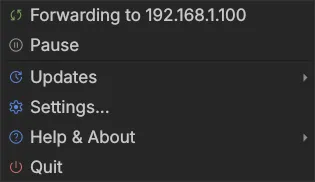
| Entry | What it does |
|---|---|
| Status line | Where this machine is forwarding to, and whether the reports are arriving. Clicking it is a shortcut for Pause. |
| Pause | Stop sending this machine’s active window. Reads Resume while paused. |
| Updates | Check for host update… updates PolyKybdHost on this machine. Show the running command in the terminal title… sets up bash, zsh and PowerShell on this machine for the GNU nano overlay, because the forwarder reports this machine’s window titles. There is no firmware or font entry: those are only on the machine the keyboard is connected to. The Updates submenu needs PolyKybdHost 1.17.86 on this machine. |
| Settings | The few settings that apply here: the light/dark theme, the interface language and the browser-URL options. Each machine follows its own system language, so the forwarder can run in a different language from the keyboard machine. |
| Help & About | About, the log viewer, Open config folder, Report a Problem… and Collect logs… — the same set, for this machine’s logs. |
| Quit | Stop forwarding and close. |
Pausing
Section titled “Pausing”Pause stops this machine from sending its window titles — useful when you are doing something on the remote machine that you would rather the other computer knew nothing about. Nothing is sent while it is paused, and the status line says so. Resuming sends the current window immediately, so the keycaps update without waiting for you to switch application.
Checking that it works
Section titled “Checking that it works”The forwarder’s status line shows this without opening anything: it reads Forwarding to <address> when reports are arriving and Cannot reach <address> when they are not, and the tray mark greys out to match.
For more detail, focus a window on the remote machine and watch the two logs.
The forwarder reports which window it saw:
Active App: 'Document1 - Word' winword 12345678The keyboard machine’s log — the Daemon Log tab in the log viewer — shows the matching change once the remote-desktop client is focused:
Remote App Changed: "winword", Title: "Document1 - Word" Handle: 12345678If the forwarder logs windows but the keyboard machine never logs them, the reports are not arriving — see below.
Website-aware overlays for a forwarded browser
Section titled “Website-aware overlays for a forwarded browser”A forwarded browser can match on its website, not just its window title. Install the
browser extension on the remote machine — it reports to
127.0.0.1 there, so it needs no special configuration — and the forwarder sends the
focused tab’s URL along with the window. Your urls-contains entries then apply to
forwarded browsers just as they do locally, including an in-app navigation that never
changes the window title.
This works only over the authenticated connection: it needs the --report-rpc setup above, and the
legacy relay in the next section does not send the URL.
If it does not work
Section titled “If it does not work”| What you see | What it means | Fix |
|---|---|---|
| Forwarder tray: Cannot reach <address>, icon grey | Reports are not arriving — the rows below say why | Open the forwarder’s Help & About → Log file… for the reason |
| Forwarder tray: Forwarding paused | Somebody pressed Pause on this machine | Click Resume |
Forwarder: Window-report RPC to … failed: timed out |
Nothing is listening, or a firewall is dropping the connection | Confirm step 1 on the keyboard machine (polyctl settings get window_report_network_enabled), that it was restarted afterwards, and that port 50163 is allowed |
Forwarder: Using this machine's local window-report authkey |
--report-authkey-file was omitted |
Add it, pointing at the key copied in step 2 |
Forwarder: control protocol mismatch … restart so versions match |
The two machines run incompatible PolyKybdHost versions | Update both to the same version |
Forwarder: Connection timed out on port 50162 |
The forwarder is still using the legacy relay | Add --report-rpc (and the key file), or see the legacy section below |
Keyboard machine: Remote overlay entries are configured but the legacy plaintext window relay (TCP 50162) is disabled |
Same as above, seen from the other side | As above |
| Both logs look fine, keycaps do not change | The keyboard machine’s focused window is not a remote mapping entry |
Focus your remote-desktop client, and check it has a remote: true entry (see Before you start) |
A forwarded browser matches its title but never a urls-contains entry |
The URL is not reaching the keyboard machine | Check the extension is installed on the remote machine and its Options page reports Connected, and that the forwarder runs with --report-rpc (the legacy relay never sends the URL) |
Collecting the logs takes one click on each side: the forwarder’s Help & About submenu has the same Report a Problem… and Collect logs… entries as the keyboard machine’s, and a forwarder report says so on its first line. Because the two programs run on different computers, a bundle from one never contains the other’s log — collect from both. See Reporting a Problem.
Legacy plaintext relay (port 50162)
Section titled “Legacy plaintext relay (port 50162)”Older versions relayed window reports over a plaintext TCP socket on port 50162 with no authentication, accepting connections from anywhere on the network. That relay is disabled by default since PolyKybdHost 0.10.5 and has been replaced by the authenticated path above.
If you have an existing setup built on it and want to keep using it for now, enable it on the keyboard machine and restart:
polyctl settings set dev_legacy_plaintext_relay trueThe forwarder then needs no extra flags — plain --host <IP> uses it. In the settings dialog the option only appears when developer mode is on.