

Display Brightness
The per-key OLEDs can be dimmed and brightened three different ways. Whichever you use, a manual change takes priority until automatic mode is back on: you turn it on again, or the keyboard reconnects to PolyKybdHost.
Manual
Section titled “Manual”- On the keyboard — the brightness preset keys step the keycap OLEDs up and down.
- In PolyKybdHost — pick a level from the tray’s Brightness submenu, or set one under Settings → Brightness.
- Command line —
polyctl brightness <0–100>.
A manual set switches automatic mode off, so the keyboard keeps exactly the level you picked.
Going back to automatic
Section titled “Going back to automatic”A manual level stays until you turn automatic mode back on, or until the keyboard
reconnects to PolyKybdHost (after a reboot, a replug or a host restart): on every connect
the host sets its brightness mode again. To turn automatic mode back on yourself, choose
Brightness → Back to automatic in the tray (or run polyctl brightness --auto).
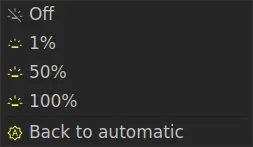
If adaptive daylight brightness is switched off in Settings, that entry reads Clear manual override instead: there is no automatic source to return to, so it just puts the keyboard back on its own stored level.
Adaptive (daylight)
Section titled “Adaptive (daylight)”PolyKybdHost can adjust to daylight: with location access enabled it computes the solar irradiance for your position and time of day and slowly raises the brightness during the day and lowers it in the evening. Enable it under Settings → Brightness. It refreshes roughly every ten minutes.
It uses two online lookups, each with its own switch under Settings → Brightness:
- Allow Online Location Lookup finds your approximate location from your IP address
(
ip-api.com). Without a location, the brightness follows the hour of the day. - Allow Online Irradiance Request asks
open-meteo.comfor this hour’s sunlight at that location, clouds included. Without it, the host computes the sunlight of a cloudless sky.
If the curve does not suit your room, Gamma and the Irradiance values change it; see the Settings Reference.
On-board light sensor (optional)
Section titled “On-board light sensor (optional)”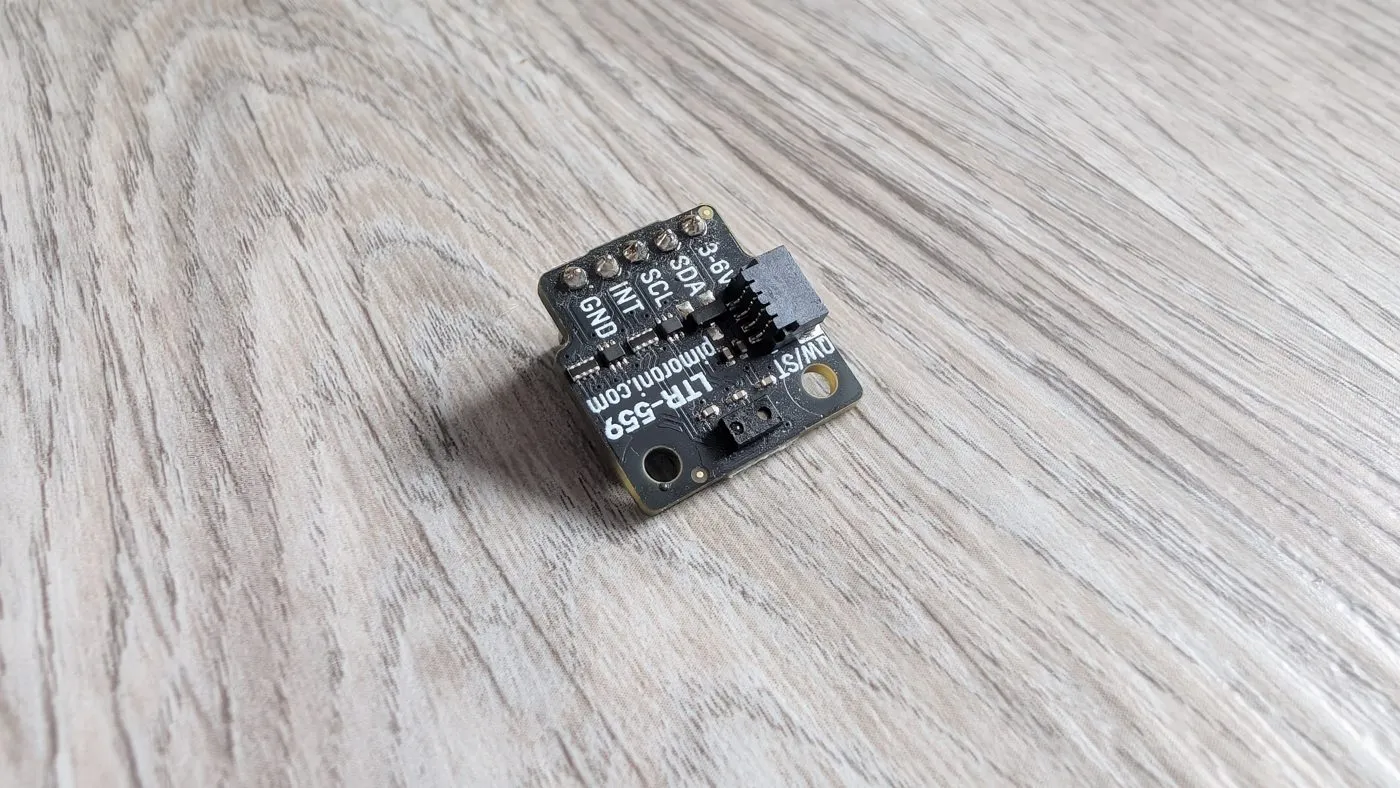
The Split72 has an expansion port for an optional ambient-light + proximity sensor (Pimoroni LTR-559). If one is fitted, the keyboard sets its own brightness from the measured light level — much faster than the host’s daylight estimate (roughly twice a second) — and overrides the host’s daylight value while automatic mode is on.
The same sensor reads proximity: reach toward the keyboard and the displays wake before you even press a key.