
Macros
A macro is a piece of text — or a short sequence of keys — stored on the keyboard and typed back when you press one key. An email address, a login, a shell command, a phrase you write ten times a day.
Every keyboard with macros has this. What is different here is that the keycap shows which
macro it is. A macro key shows a short label along its bottom edge, so the row reads push,
work mail, sign off rather than M0, M1, M2.
Where they already are
Section titled “Where they already are”You do not have to place a macro before you can press one. The Utility layer’s top row
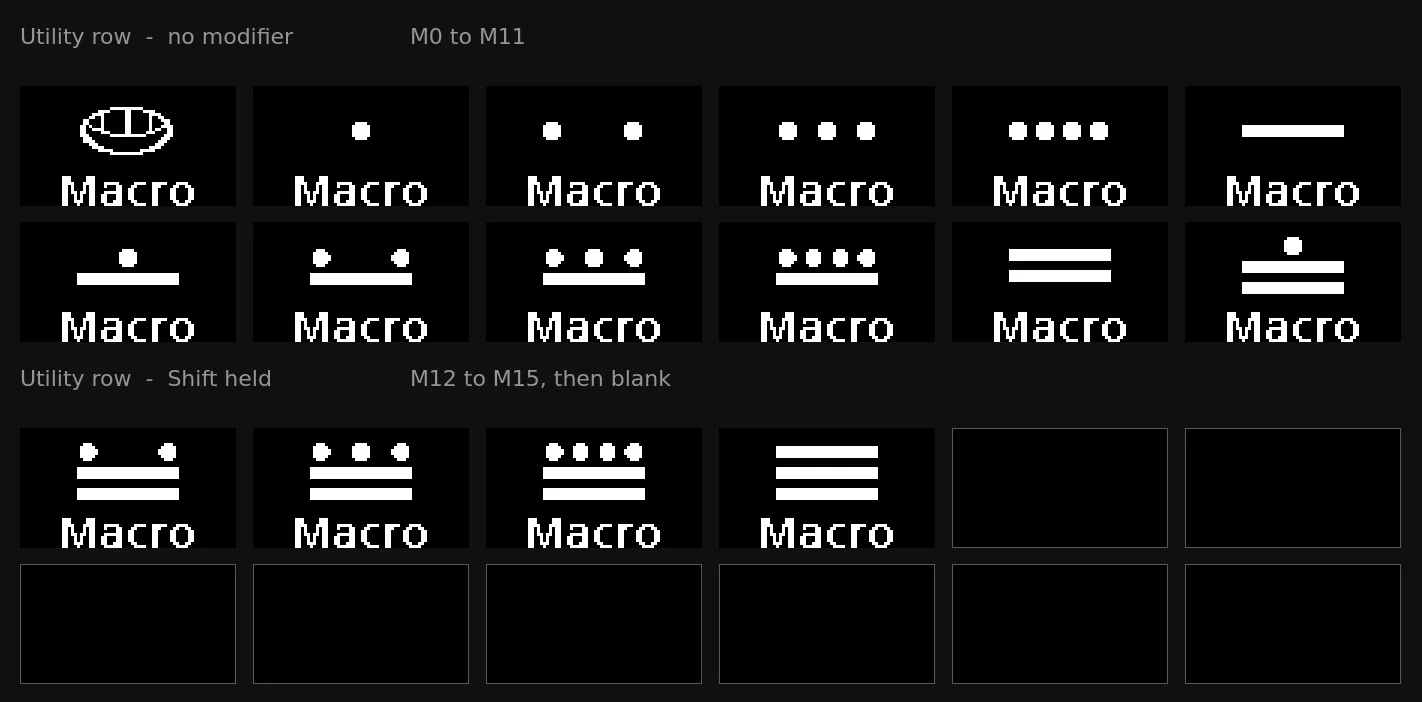
is the macro row: twelve keys, M0 to M11 from left to right across the two halves.
To reach it, hold Fn and tap the top-left key: that switches to Utility for a single keypress, so the very next key you press runs its macro. To stay on the layer instead — for several macros in a row — hold Fn and tap the top-right key.
The last four macros share the same twelve keys: hold Shift and the first four become M12
to M15. The other eight go blank while Shift is down, which shows where the
second group of macros ends.
Writing one
Section titled “Writing one”You edit macros in the Keymap Editor — open the tray menu and choose Configure Keymap, then the Macros tab beside Layers & Mods.
- Pick a macro from the list on the left.
- Type the label — what the keycap will show.
- Type what it types in the field below.
- Save macro.
That is enough to use it — macro 0 is already on the first key of the Utility row. Step 5 is
only if you want it somewhere else:
- Click the key you want it on in the keyboard picture, then Use on selected key.
The label field shows the keycap exactly as it will look, next to a meter of how much of the 72-pixel-wide display the label uses. Both update as you type.
Triggering a macro with a modifier
Section titled “Triggering a macro with a modifier”A macro takes a whole key. It cannot be combined with a modifier the way Ctrl+C or a
tap-hold key is.
Use a layer instead, which is how the keyboard expresses “modifier + key” for anything that is not a plain keystroke:
- In the Keymap Editor, switch to a layer above the base one —
Fn,NumpadorUtility. - Assign the macro to a key there, exactly as on the base layer.
- Hold that layer’s key and press it — Fn + E, say.
The keycap shows the macro’s label while the layer is held, so the assignment is visible on the board rather than something you have to remember.
Key combinations, pauses and held keys
Section titled “Key combinations, pauses and held keys”A macro is really a list of steps, and plain text is the common case rather than the
only one. Press Steps… beside the Types: field to open the step editor:
| Action | What it does |
|---|---|
| Tap | press and release one key |
| Hold | press a key and leave it down |
| Release | release a held key |
| Wait | pause, in milliseconds |
| Type | one character, as the text field produces |
Each row is an action and its Value — a key for Tap, Hold and Release, a duration for Wait — in a single column, so a row only ever offers the one editor its action can use.
A key combination is a Hold, the key, then a Release — Ctrl+Shift+P is Hold Ctrl, Hold
Shift, Tap P, Release Shift, Release Ctrl. The line under the table names what the
macro does in ordinary terms as you build it, so you can check it without reading the
rows back.
Recording
Section titled “Recording”Rather than adding those five rows by hand, press Record and then press the keys.
Every press and release is captured in order; press Stop (or Esc) when you are
done. The rows are ordinary steps afterwards, so anything captured wrongly can be
edited or deleted.
Two things worth knowing:
- Pauses are not recorded by default. Most macros should run as fast as the keyboard
can send, and a
Waitbetween every keystroke makes the list longer and uses space in the shared store. Switch the box beside Record to with timing if the timing matters — for example, for an application that drops input sent too quickly. - Recording reads the character a key produces, not its position. On a layout where
the key in the QWERTY
Yposition typesz, that key records asKC_Z— the keycode that typeszon your machine, which is what you meant by pressing it. It is only wrong if the macro will be replayed on a machine set to a different layout, and every step names the keycode it stored, so you can see and change it.
Leaving a modifier held at the end of a macro is allowed — the summary says so
(hold Ctrl) instead of removing it without telling you.
Writing it as text
Section titled “Writing it as text”The step editor has two tabs. Table is the one above; Script is the same macro as a line of text.
{+KC_LCTL}{KC_A}{-KC_LCTL}{50}done| Written | Means |
|---|---|
done |
type the characters |
{KC_A} |
tap |
{+KC_LSFT} |
hold |
{-KC_LSFT} |
release |
{250} |
wait, in milliseconds |
\{ |
a literal { |
Switching tabs converts the macro rather than replacing it, so use whichever is easier for the task. For example, build a key combination by recording it, then switch to Script to change one keycode. If the script does not parse, the tab does not change, your text stays as it is, and the problem is named underneath.
Record works on either tab: it appends to whichever one you are looking at. The row buttons — add, remove, reorder — belong to the Table tab, since that is what they act on.
What a macro can type
Section titled “What a macro can type”Printable ASCII, tab and newline. That is what a keyboard can actually send: it types keystrokes, not characters, so anything your keyboard layout cannot produce with a keypress — an accented letter, an emoji, a character from another script — is not something a macro can type.
If you need those, the keyboard has better tools for it: the language layer for accented letters and other scripts, and the emoji layer for emoji.
What the keycap shows
Section titled “What the keycap shows”A macro takes a whole key, so the whole key can show the macro’s label and icon. Four layouts, chosen per macro from the Keycap dropdown in the editor:
| Layout | What it draws |
|---|---|
| Icon above the label | A symbol you pick, over the label. The default on a new keyboard. |
| Number above the label | M3 over the label — the plain fallback, and the only one that needs nothing else. |
| Label only, as large as it fits | No mark at all — the label gets the whole key, at the largest face it fits on. |
| Icon only, filling the key | The icon alone, at full size across the whole key. The label is kept but not drawn, so switching back does not lose it. |
The label sits along the bottom edge. A macro with no label shows just the mark, centred.
Before you write one
Section titled “Before you write one”A macro you have never edited is not blank. Each of the sixteen starts with the Mayan numeral
for its own number over the caption Macro — a shell for zero, then dots and bars up to
fifteen.
Anything you set replaces it and is kept — the default look only fills a slot that has no macro and no look of its own. Clearing a macro restores the numeral on its keycap.
Labels are ASCII only. The small face has no accented letters, so anything outside the basic alphabet, digits and punctuation is dropped as you type rather than appearing on the keycap as a blank.
Choosing an icon
Section titled “Choosing an icon”Choose icon… opens a picker of the symbols and emoji the keyboard can draw — they come from
the font packs already on it, so what you see in the picker is what the key can show. It opens on
Emoji and symbols; Show: Every bundle shows everything on the keyboard, language
scripts included. Filter by typing a character or a codepoint (1F4E7, U+2699). Clear goes
back to no icon.
Next to a label, the icon is usually drawn at half size. Under Icon only, filling the key, or on a key with no label, it gets the whole face.
Interrupting one
Section titled “Interrupting one”Press any key. A macro that is part-way through typing stops immediately, and the key you pressed does what it normally does.
This is important: a macro can contain a deliberate pause, and the keyboard keeps working normally while one runs — it does not lock up and finish before responding to you.
From the command line
Section titled “From the command line”Everything above is scriptable:
polyctl macro list # every macro, its label and sizepolyctl macro set 0 --text "git push" --label "push"polyctl macro set 0 --style icon --icon 1F4E7 # the keycap layout, and its symbolpolyctl macro set 0 --style icononly --icon 1F4E7 # …the symbol alone, filling the keypolyctl macro get 0polyctl macro clear 0polyctl macro list also prints how much of the shared store is in use.
--text writes plain characters. For key combinations and pauses use --script, the same
syntax as the editor’s Script view:
polyctl macro set 0 --script "{+KC_LCTL}{KC_A}{-KC_LCTL}{50}done" --label "sel all"polyctl macro get prints the script form beside the steps, so a macro built in the
editor can be copied directly. A script with a typo is refused before anything
is written, naming the token it could not read.
How much fits
Section titled “How much fits”All the macros share one pool of about 2.2 KB on the keyboard, across 16 slots. That is a lot of text — an email address is around 25 bytes — but it is shared, so one very long macro leaves less for the others. The editor shows the total at the bottom, and the keyboard refuses a save that would not fit rather than truncating it.